
Track habits at your own pace
Record reading, exercise or other habits with check-ins, counts, minutes or custom quantities. Choose goals and schedules, then review your progress.
View on the App Store Habit tracker or recurring task?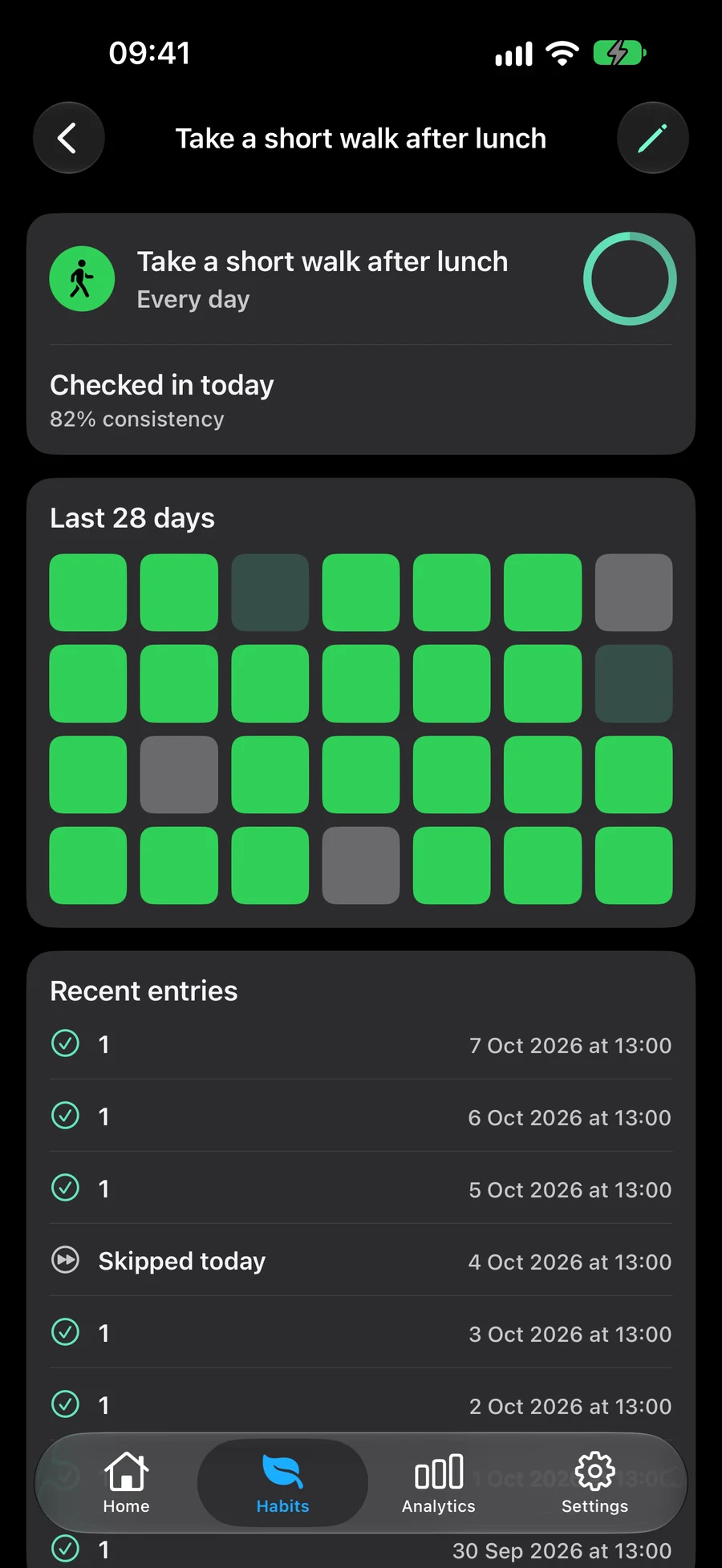
Choose how to track each habit
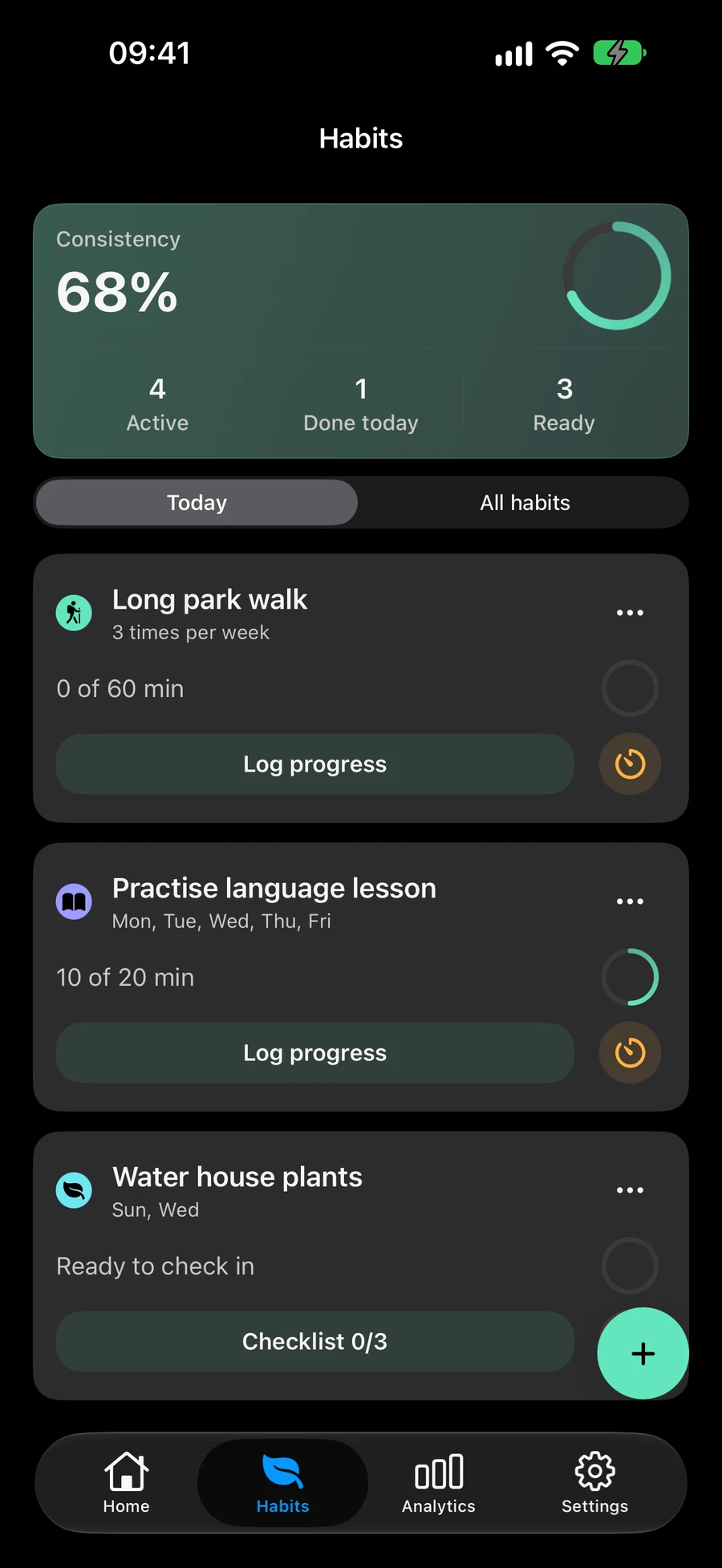
Use a simple check-in, a count, a duration or a custom quantity. Choose whether you are building a behaviour or keeping it within a limit.
- A daily reading check-in
- Minutes spent practising
- Pages read or another quantity you choose
Set a schedule and goal
Choose a preset from Daily to Yearly, or use Custom for intervals, selected weekdays and calendar positions counted from the beginning or end of a period. Set daily, weekly or monthly goals where the tracking type supports them. Skip a day or pause a habit without deleting its history. Custom repeat hides the unit selector when there is only one choice. Direction is hidden for hours and Solar months; Lunar months retain From start/From end. In “Schedule”, set the start date, recurrence, reminder times and notification/privacy options. Turning off custom times keeps the selected preferences. Add and edit checklist actions in “How will you track it?”; “Attach” holds files, photos, links and a place. Tracking and notes expand smoothly, with an immediate layout when Reduce Motion is enabled.
Use a checklist for routines with several steps
Add an ordered checklist when a habit has several actions. Finish the checklist before recording the habit’s progress. See scheduled habits beside your tasks in Today and review consistency in Analytics. Tasks, Lists, Projects, Areas and Habits support files, photos and links. In item editors, Attach becomes Attached with previews; removal sits beside each row. Location is below the materials, with a small map and an optional full-screen view. Open materials from the editor or the record’s details. In “Attach”, tap “Arrive” or “Leave” in the location reminder title to choose when to be notified. “Arrive” is selected by default. Save keeps that choice; notification and location permissions still apply.
Organise tasks alongside your habitsChoose where habits appear with Spaces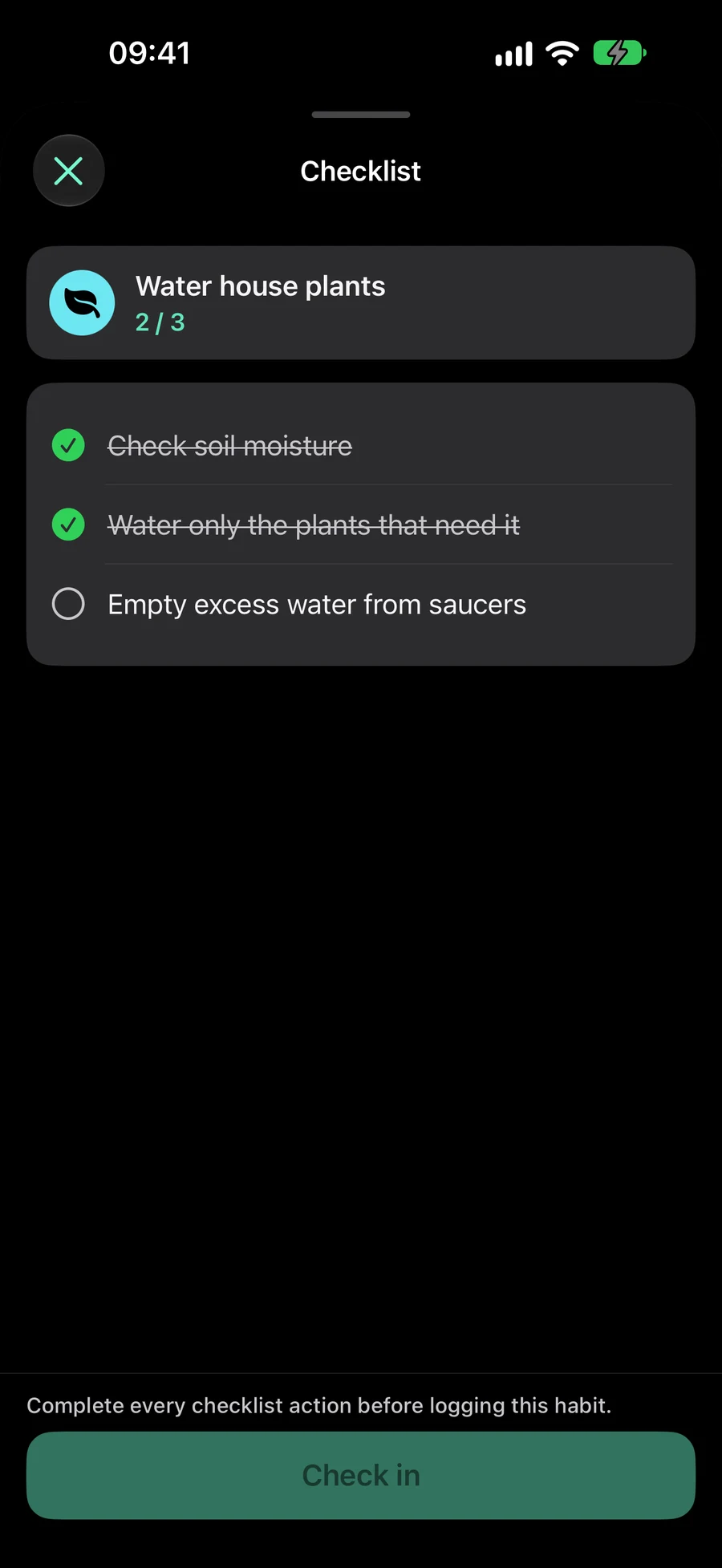
How to start a reading habit in Mement
Try duration tracking with a goal of reading for 10 minutes. Choose a schedule, then log the time you actually read.
- Open the Habits tab and create a habit named “Read”.
- Choose Duration, Build and a daily target of 10 minutes.
- Choose Daily for everyday reading, or use Custom to select the weekdays you want. Set the start date and save.
- Use Log progress after reading. If you added a checklist, finish its actions before confirming the progress entry.
Reminders with the weather in mind
Planning an evening walk? Add a weather condition to its reminder. Mement reminds you at the chosen time if the forecast matches your settings. After the walk, record your actual result.
Weather controls the reminder. The habit schedule, its goal and your progress entries remain separate settings.
How to add a weather reminder to a habitHabit tracker or recurring task?
Use a Task for an action to finish and a Habit to record practice over time. Try recycling and reading as examples.
- Create a Task for taking out the recycling, with the date and recurrence you need. Mark it done after finishing the action.
- Create a reading Habit with duration tracking and a 10-minute daily target. Choose its schedule, save it and confirm the minutes you actually read.
- To track a weekly reading quantity, choose a tracking type that supports a weekly goal. Set the weekly amount separately from the calendar schedule. A preset or Custom rule determines the days available for practice.
- Review Habit history for progress. Finish any checklist actions before confirming the progress entry. Keep one-off actions, such as buying a book, as Tasks.
Continue exploring
Frequently asked questions
Can I track a habit without a task?
Yes. Habits have their own editor, schedules, progress and history.
What if a habit is missing today?
Open Habits → All habits. Check its start date, rhythm and whether it is paused or archived. If a Space is active, check that Show habits is enabled.
What is the difference between a habit’s goal and its schedule?
The goal sets how much progress to record in a day, calendar week or calendar month. The schedule selects eligible days through a preset or Custom calendar rule. Check-ins have daily goals. A weekly amount goal can use the schedule you choose. Changing the goal period keeps that calendar rule.
Does finishing a habit checklist record progress automatically?
No. Completing the checklist enables the final Check in or Log progress action. Confirm that action to record the habit entry.
Start tracking a habit
Choose a habit that matters to you and set a schedule you want to follow.
View on the App Store