
Separate work and home plans with Spaces
Choose existing items manually or with Smart Filters. Switch the plans shown across Mement and decide whether each Space includes habits.
View on the App Store Separate work and personal plans with Spaces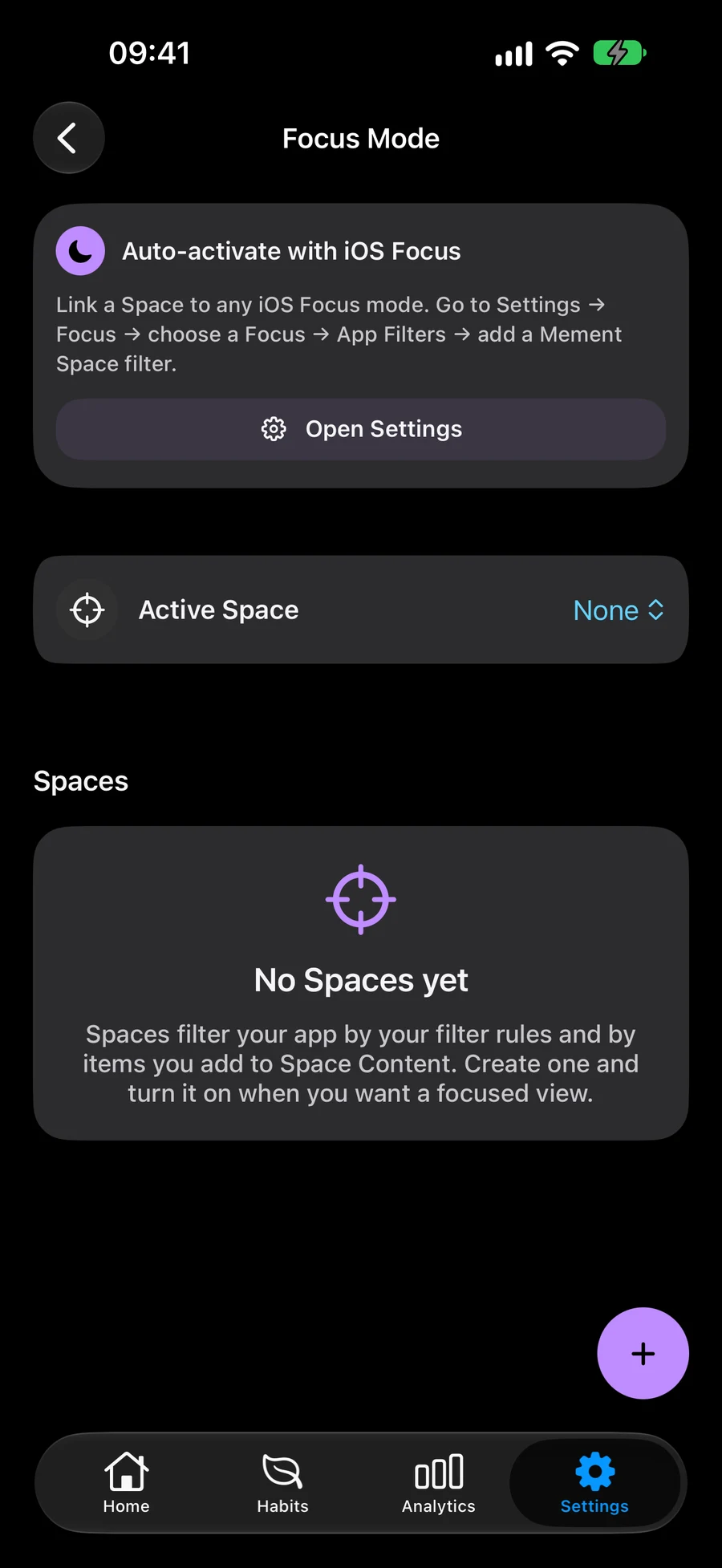
Select items or use Smart Filters
Include specific tasks, lists, projects and areas, or use Smart Filters to include matching items automatically. Combine both approaches and choose whether all filters or at least one must match.
Choose a structure for your plansUse a Space across Mement
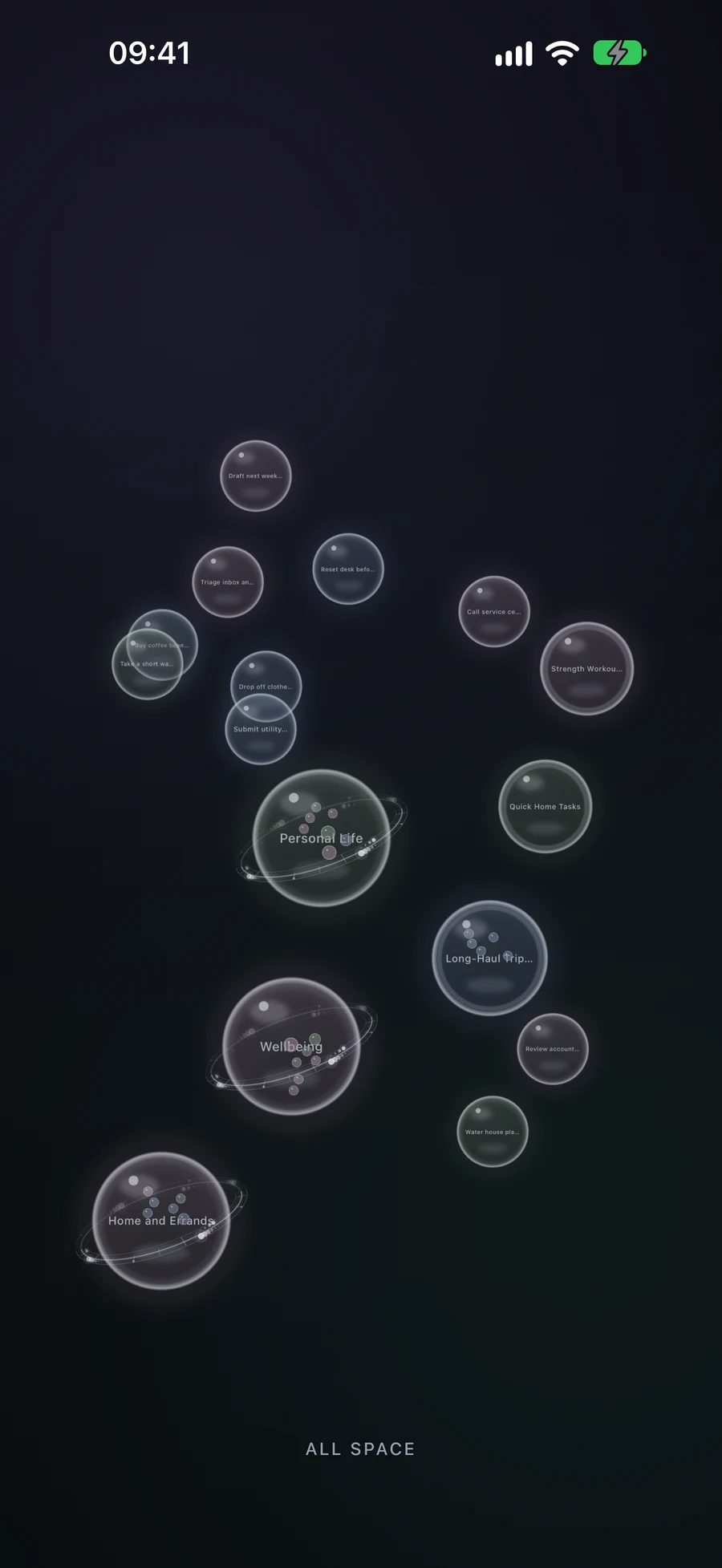
Your active Space shapes what appears in Home, Habits, Nearby and Big View. Choose whether to show habits in each Space, so you can keep work and personal plans in separate views.
Explore the active Space in Big ViewSet up habits for your routineFind errands in your active Space with Nearby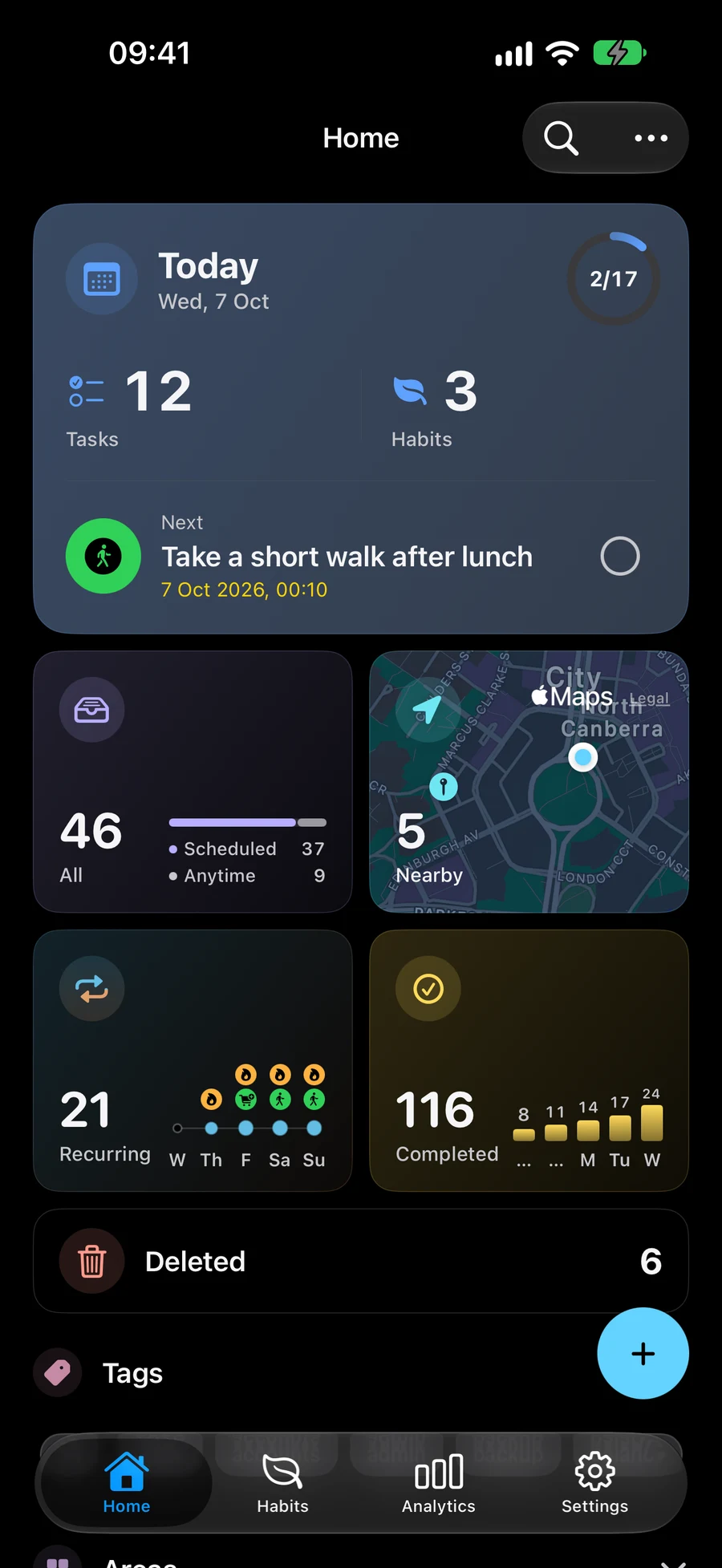
Switch Spaces as your day changes
Choose an active Space in Mement’s Focus Mode settings. Return to the full workspace when you need to see all your plans. Deleting a Space removes that saved view and keeps the items it included.
Keep plans in sync across Apple devicesSeparate work and personal plans with Spaces
A Space is a saved view of existing plans. Create work and home views without copying tasks or projects.
- Open Focus Mode settings and create a Work Space. Select the relevant tasks, lists, projects and areas manually, then confirm the selection.
- Add Smart Filters for automatic matches. Choose whether all filters or at least one must match. Manual selections remain included alongside matches.
- Choose whether to show habits, save the Space and activate it. Home, Habits, Nearby and Big View show plans within that Space.
- Create a Home Space and switch as needed. Clear the active Space to see the full workspace. Deleting a Space keeps its tasks and projects.
Continue exploring
Frequently asked questions
Do I need to copy items into each Space?
No. Spaces show the same saved items through manual selection and Smart Filters. If both include the same item, it appears once.
Is a Space the same as an Apple Focus mode?
A Space is a saved context inside Mement, selected in Mement’s Focus Mode settings. Apple Focus can choose a List and its appearance for supported widgets through system settings.
Create a Space for work or home
Choose which tasks, lists, projects and areas belong in that view.
View on the App Store