
Mement.
Plan your day.
Keep track of your habits.
Plan tasks and projects, record habits and sync with iCloud. Mement brings everyday planning to your Apple devices, with optional GTD and Spaces.
View on the App StoreSync through iCloud without a separate Mement account.
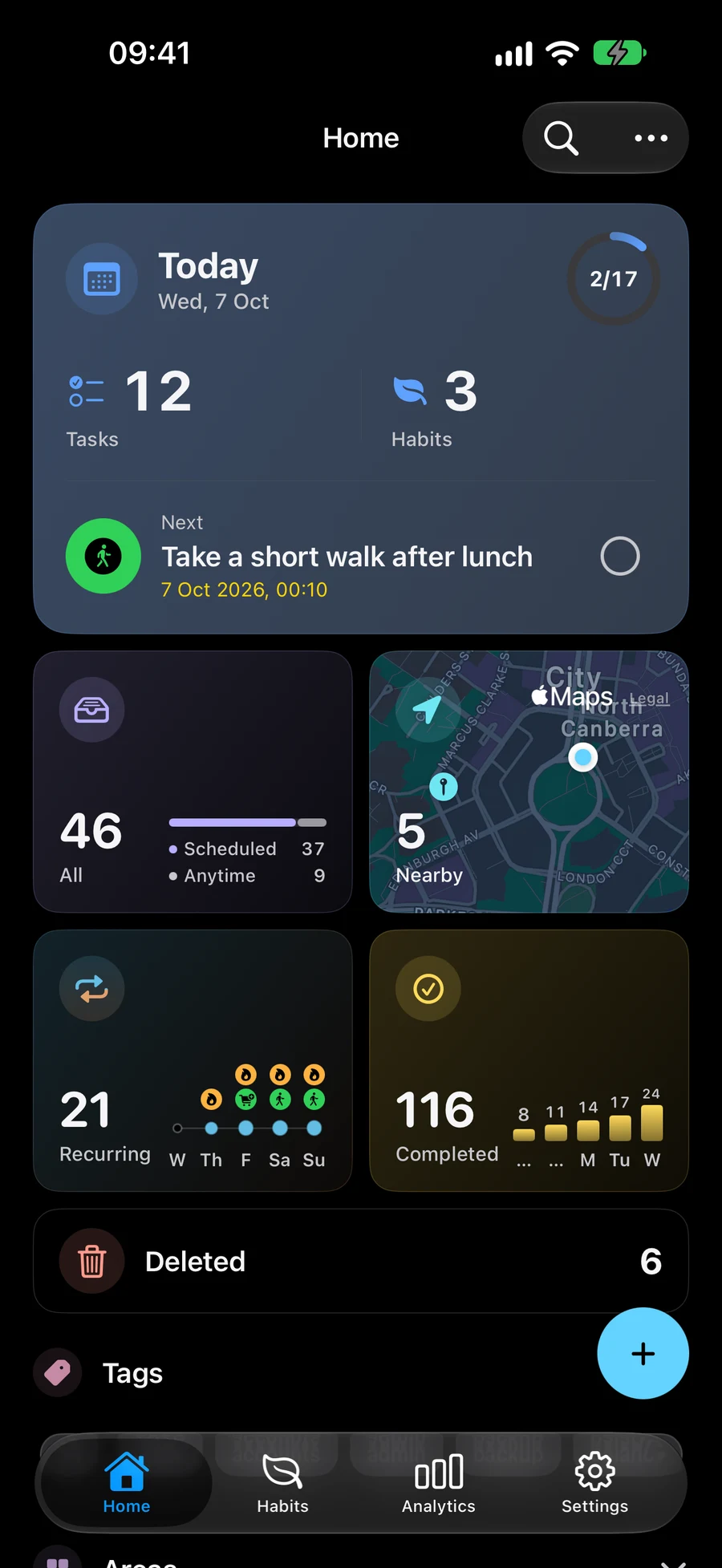
Capture a task, then decide what comes next
Start with one task. Add dates, reminders and more structure when you need them.
-
1
Capture
Write down a task while it is fresh in your mind. Dates and reminders can come later.
-
2
Organise
Keep related tasks in Lists and Projects. Use Areas for ongoing responsibilities such as home or work.
-
3
Focus
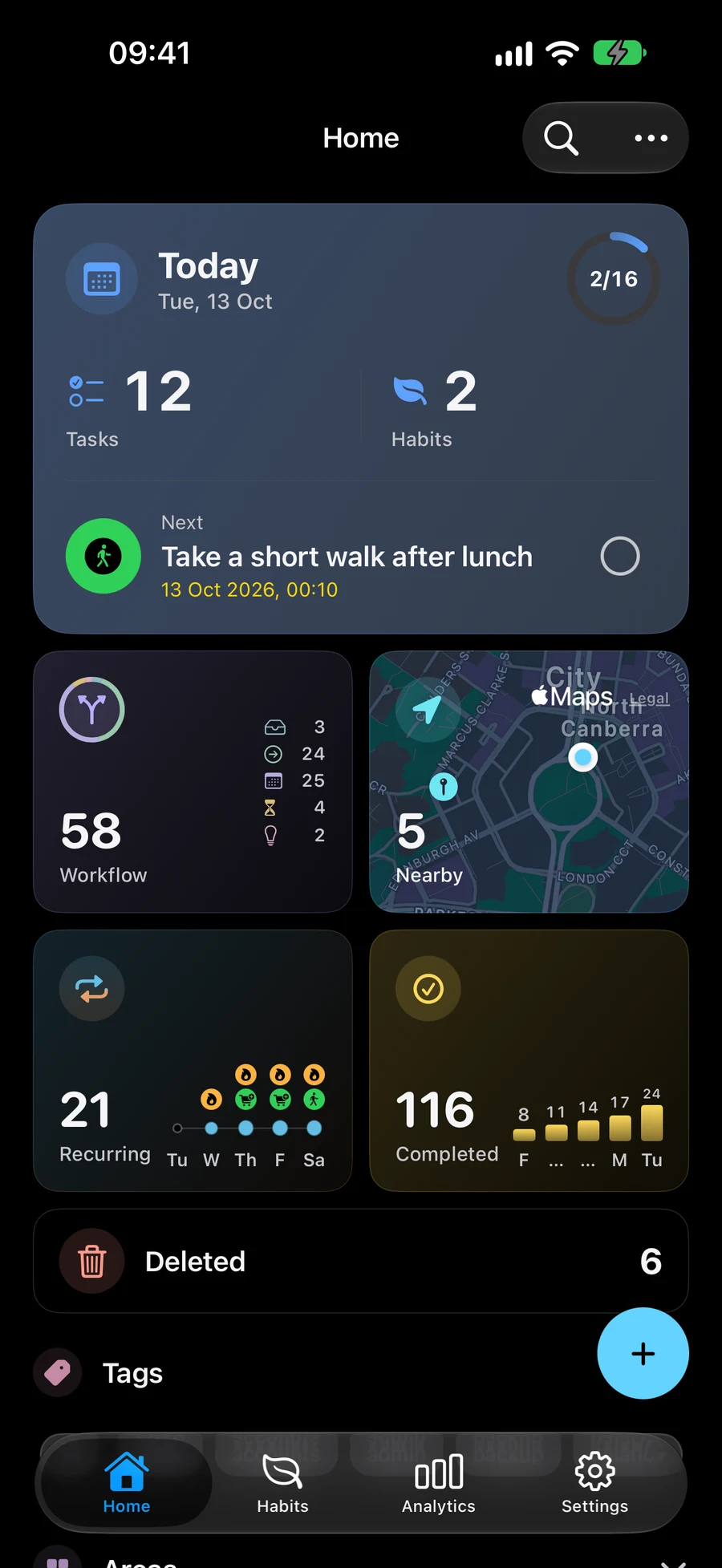
See today’s tasks and habits together. Use a Space to show the plans for one part of your day.
Ways to organise your day
Plan a project, track a habit over time or see your plans in Big View. Use Spaces to choose what is visible and Nearby to plan errands.
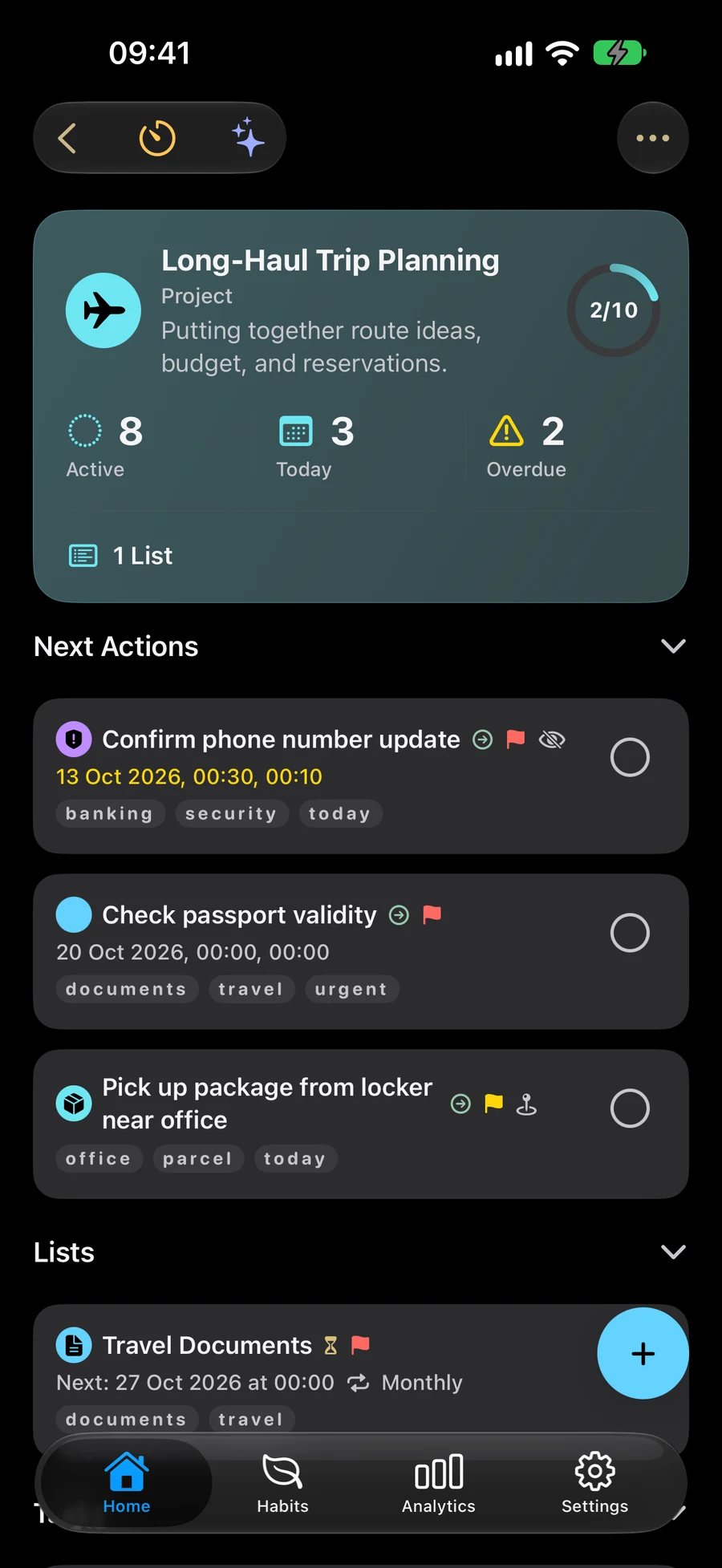
Organise tasks, lists and projects
Capture a task, group related work in lists, projects and areas, then add dates or reminders when needed. GTD is optional.
- Areas
- Projects
- Lists
- Tasks
Track habits at your own pace
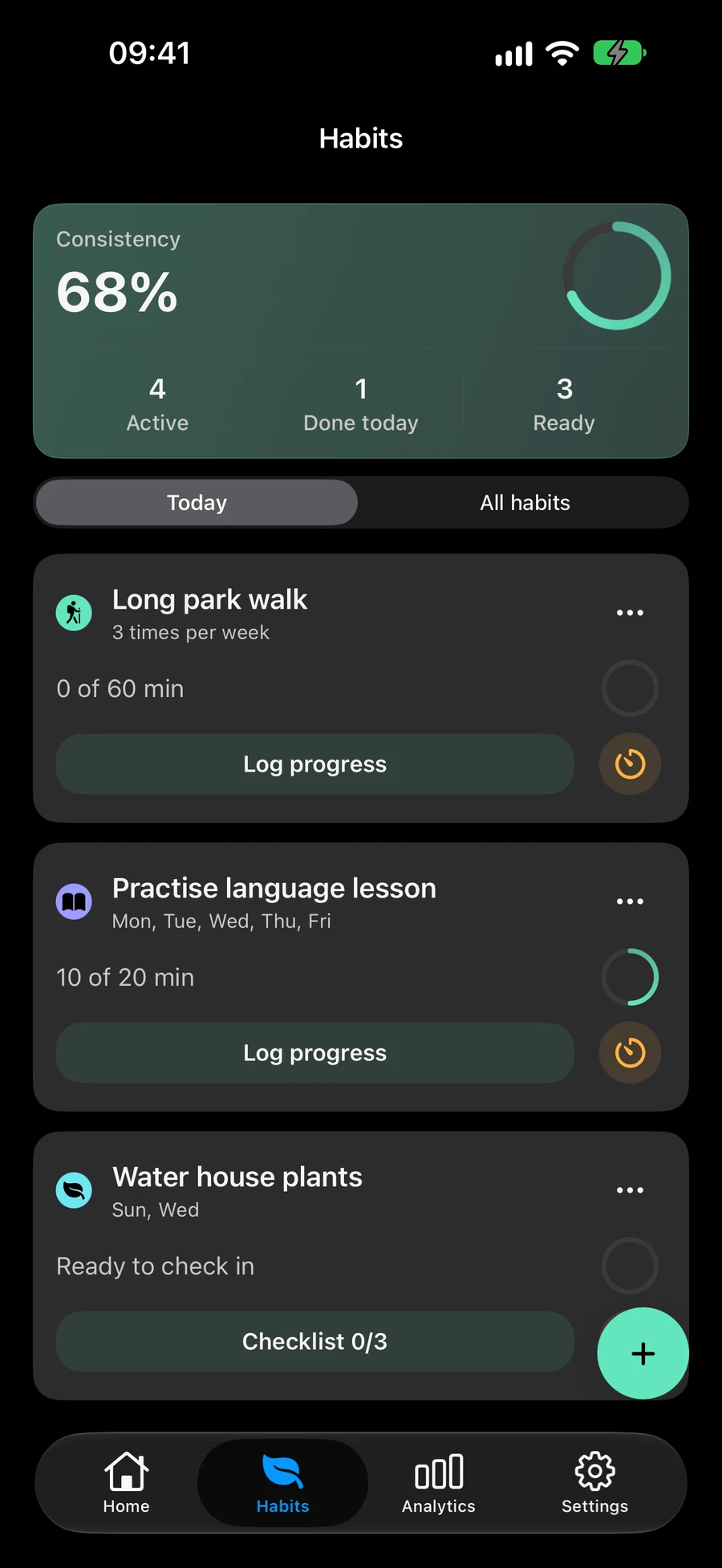
Record reading, exercise or other habits with check-ins, counts, minutes or custom quantities. Choose goals and schedules, then review your progress.
Explore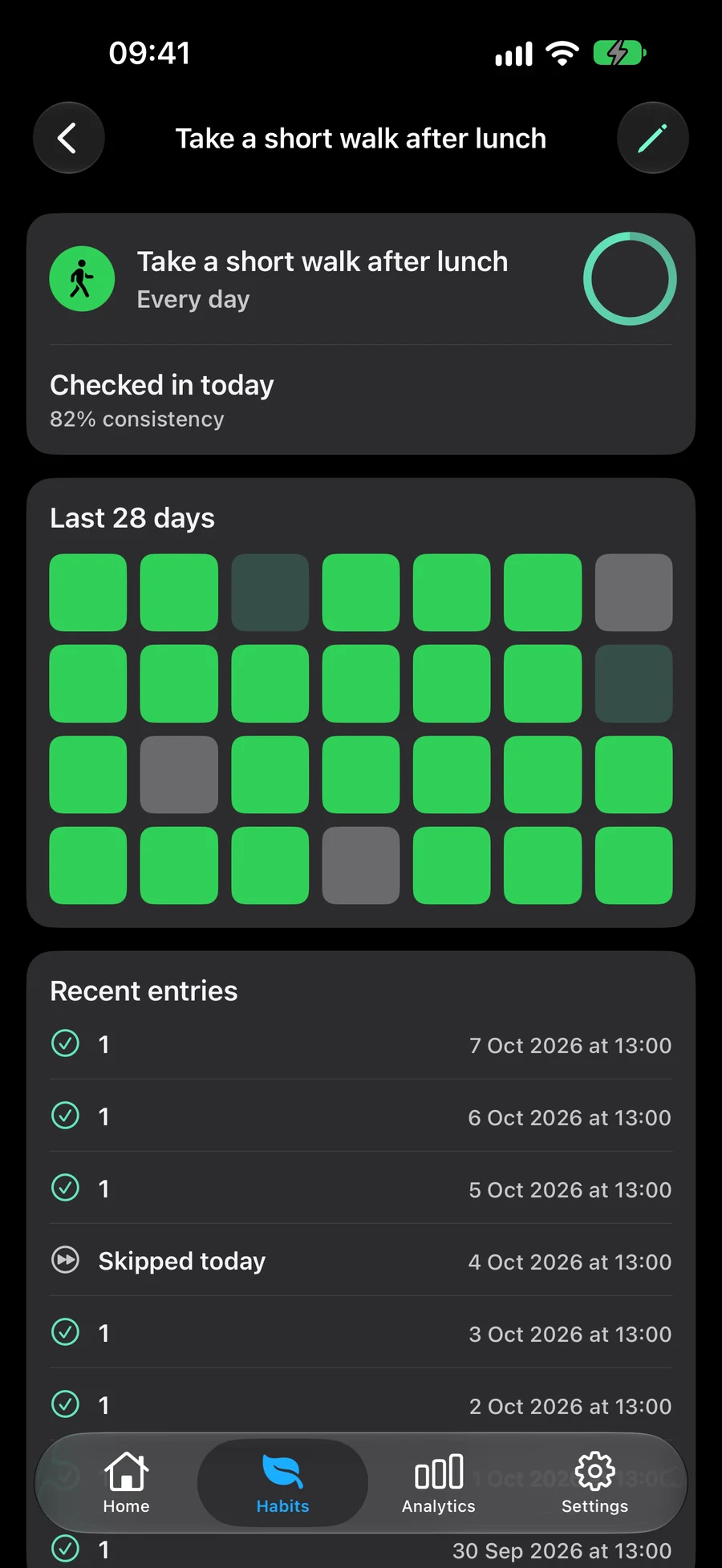
Choose your next action with GTD
Capture ideas in Inbox, clarify next actions and review saved plans. Mement's optional GTD workflow keeps dates separate from each item's status.
Explore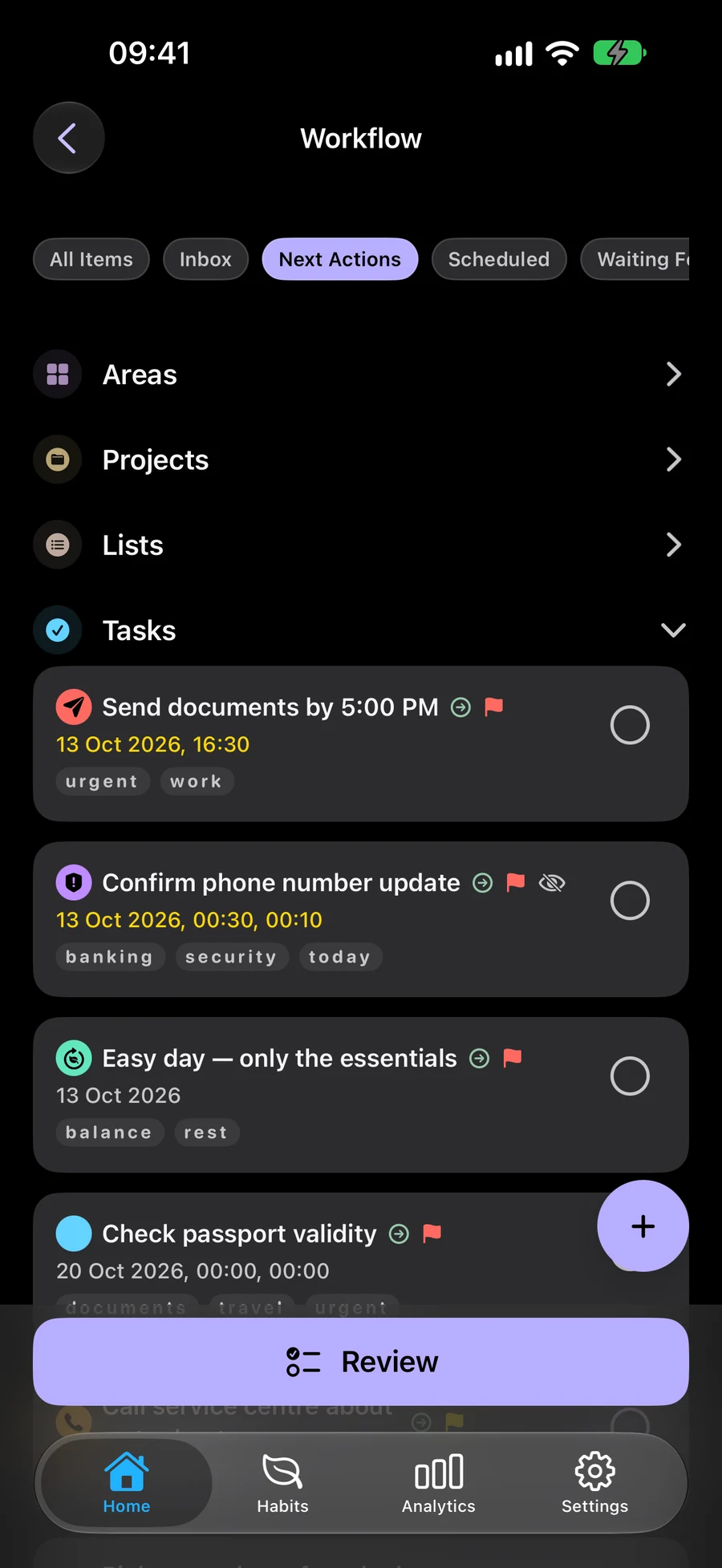
See tasks and projects in Big View
Explore tasks, lists, projects and areas as spheres. Open their details, check progress and see the structure of the plans in your active Space.
Explore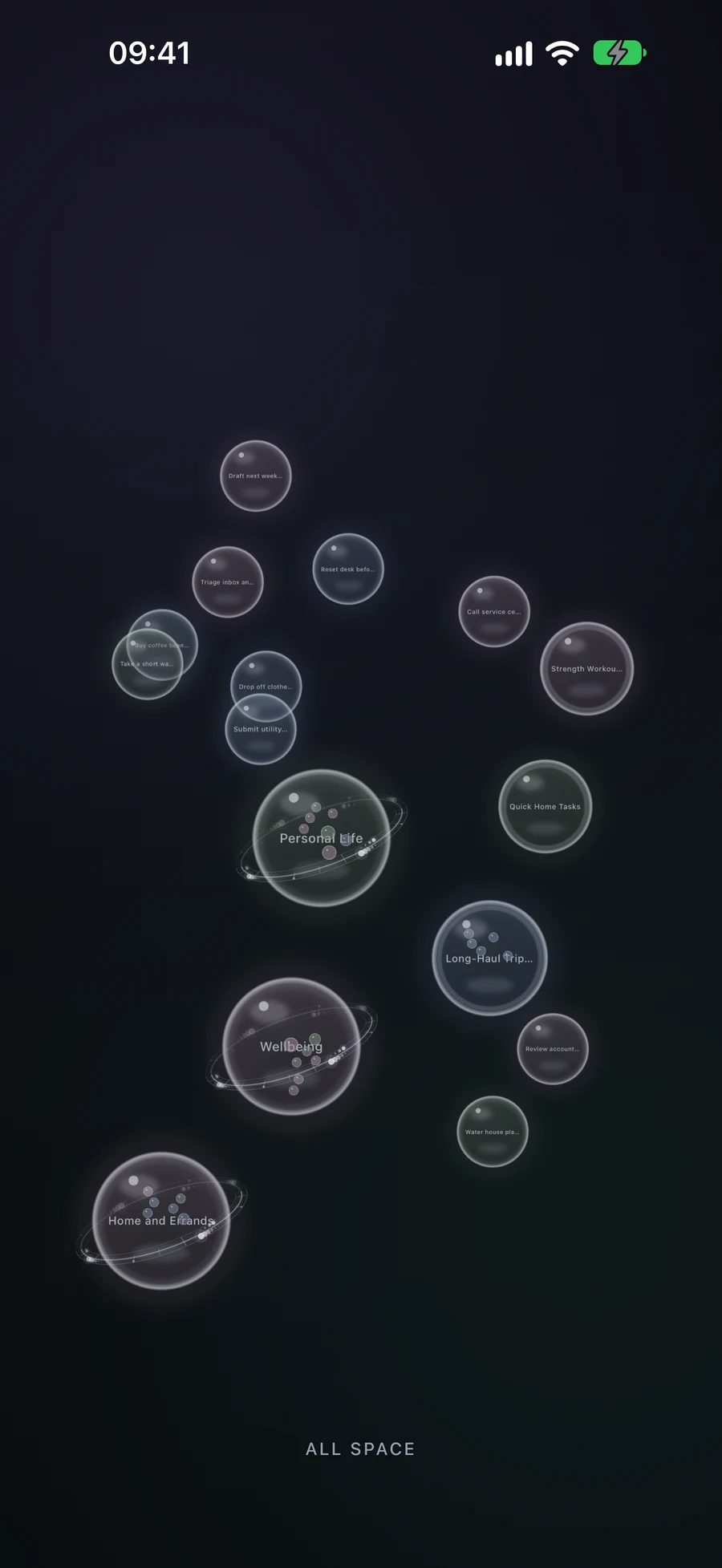
Separate work and home plans with Spaces
Choose existing items manually or with Smart Filters. Switch the plans shown across Mement and decide whether each Space includes habits.
Explore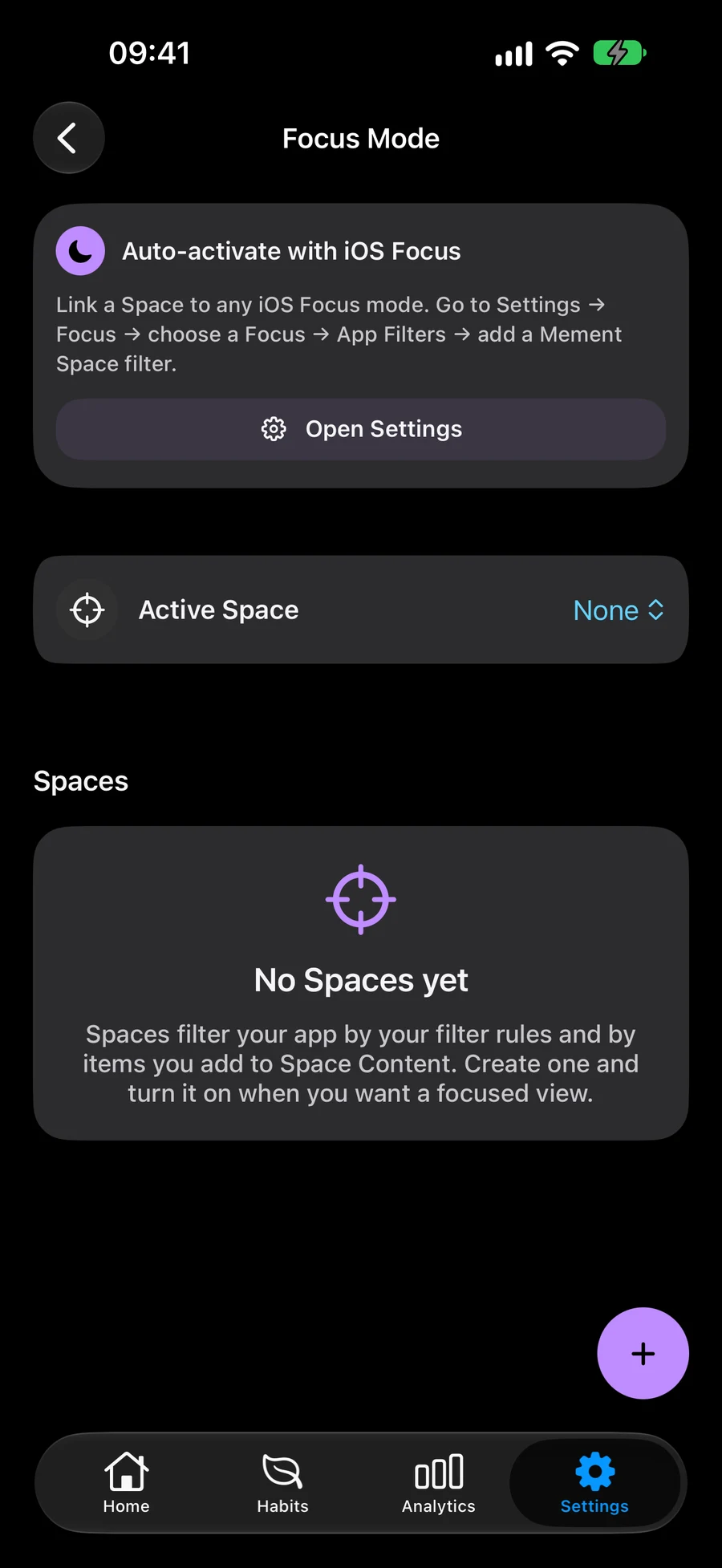
Plan nearby errands and choose your stop order
Find tasks with saved locations, choose and rearrange stops, then open the route in Apple Maps. Supported arrival reminders depend on permissions.
Explore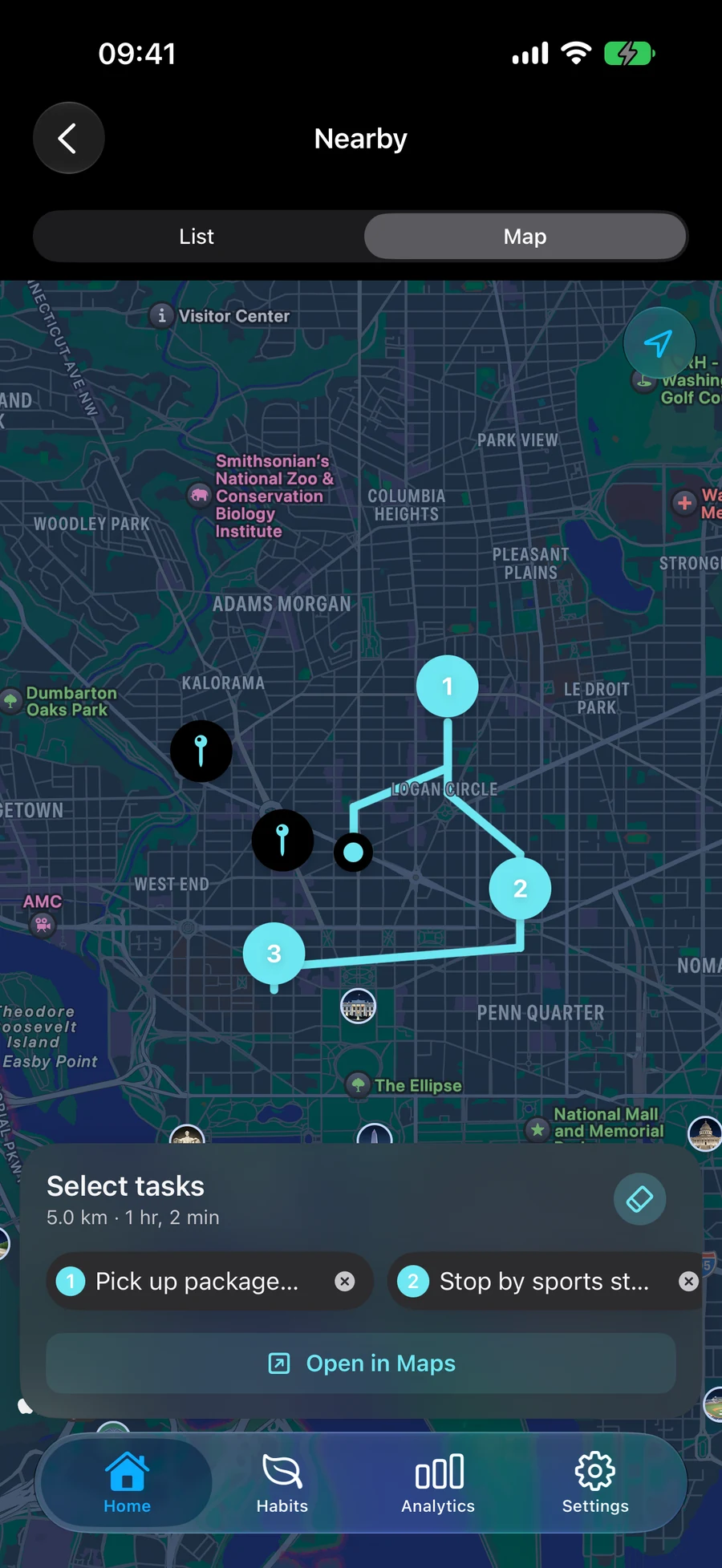
Smart lists, projects and areas
Make an existing list, project or area Smart to bring matching items into its contents automatically. For example, keep unfinished high-priority tasks together or collect work items tagged for your next review. The same saved item can appear through a filter and remain in its original structure.
ExploreAI in Mement
Describe what you want to do, and Mement can generate a list with tasks. Review the suggestions, adjust the details and save the list. AI can also suggest details as you type, find related items and answer questions about saved plans. Generation and summaries use Apple Intelligence on a compatible device.
ExploreUse Mement with your Apple devices
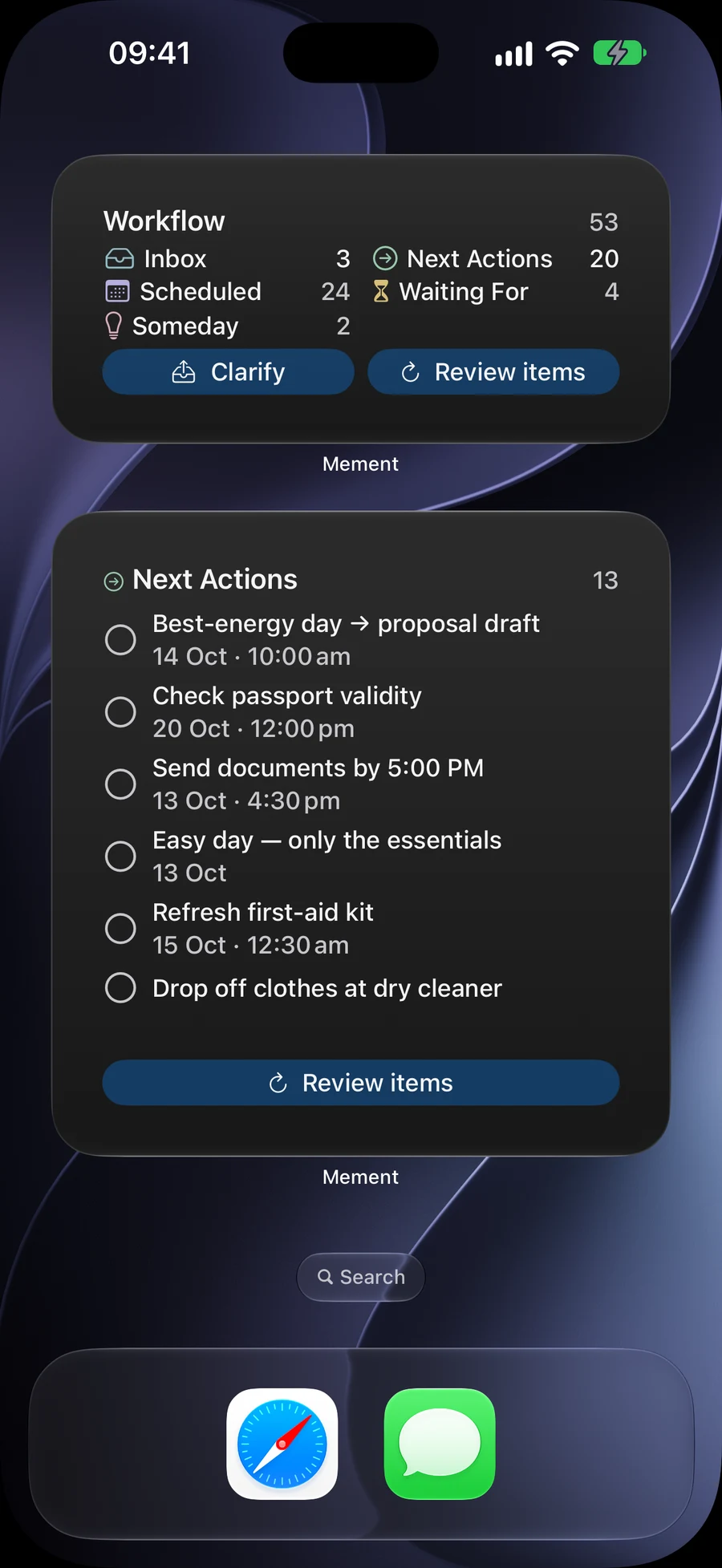
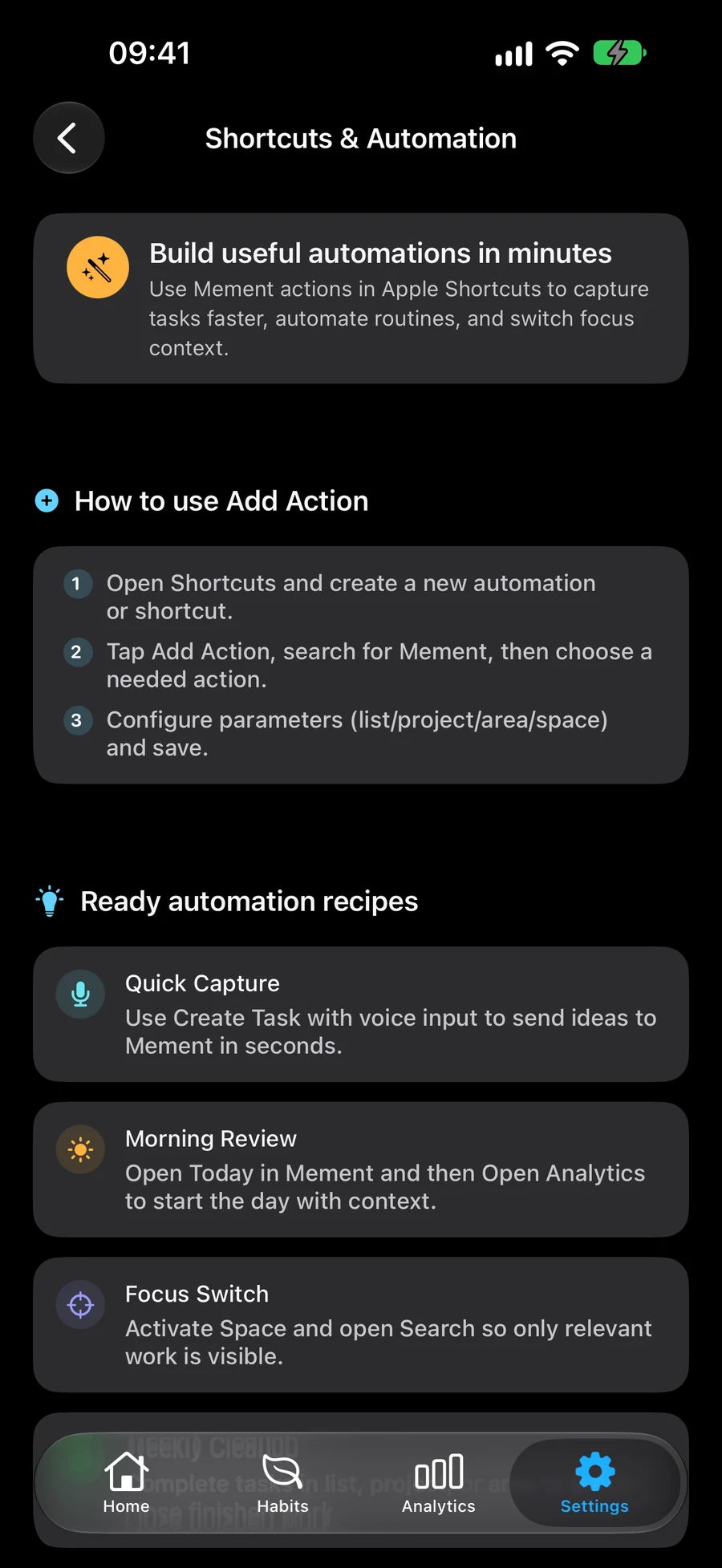
Mement runs on iPhone, iPad, Mac and Apple Vision Pro. Explore your plans in Big View on Apple TV. Keep plans in sync through iCloud, and use widgets and Shortcuts on supported devices.
- Widgets
- Siri & Shortcuts
- iCloud
How Mement handles your data
Your content syncs through your private iCloud account. On-device AI and optional analytics have separate rules and controls. Read about what Mement processes, where it happens and which choices are yours.
PrivacyFrequently asked questions
Do I need a Mement account?
No separate Mement account is required. Cross-device synchronization uses your Apple Account and iCloud.
Is a habit the same as a recurring task?
A task is work to finish. A habit tracks a behaviour over time, with its own rhythm, goals and history. You can see both in Today.
Do I need to use GTD?
No. Ordinary tasks, lists, projects and habits work independently. GTD is an optional workflow you can turn on when you want to use it.
Where can I check pricing and device support?
The App Store shows current compatibility and available purchases for your region. Check the purchase screen in Mement before confirming a subscription.
Add your first task
Write down what you need to do. You can add dates, reminders and more structure later.
View on the App Store