
Choose your next action with GTD
Mement’s optional GTD workflow helps you capture ideas, clarify next actions and review your commitments using the same tasks, lists, projects and areas.
View on the App StoreTurn on GTD in Settings → General → Organization → Use GTD. It is off by default.
Your first GTD review in Mement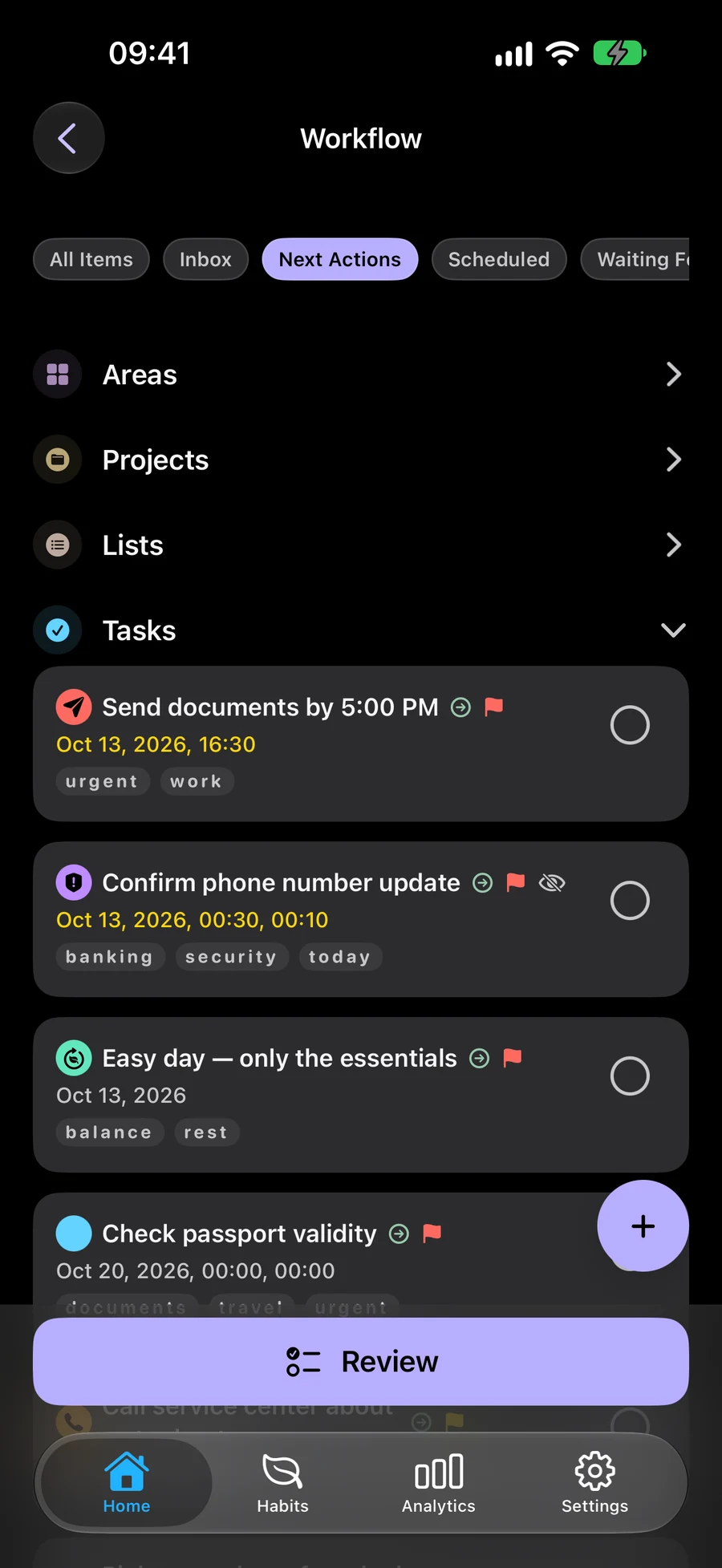
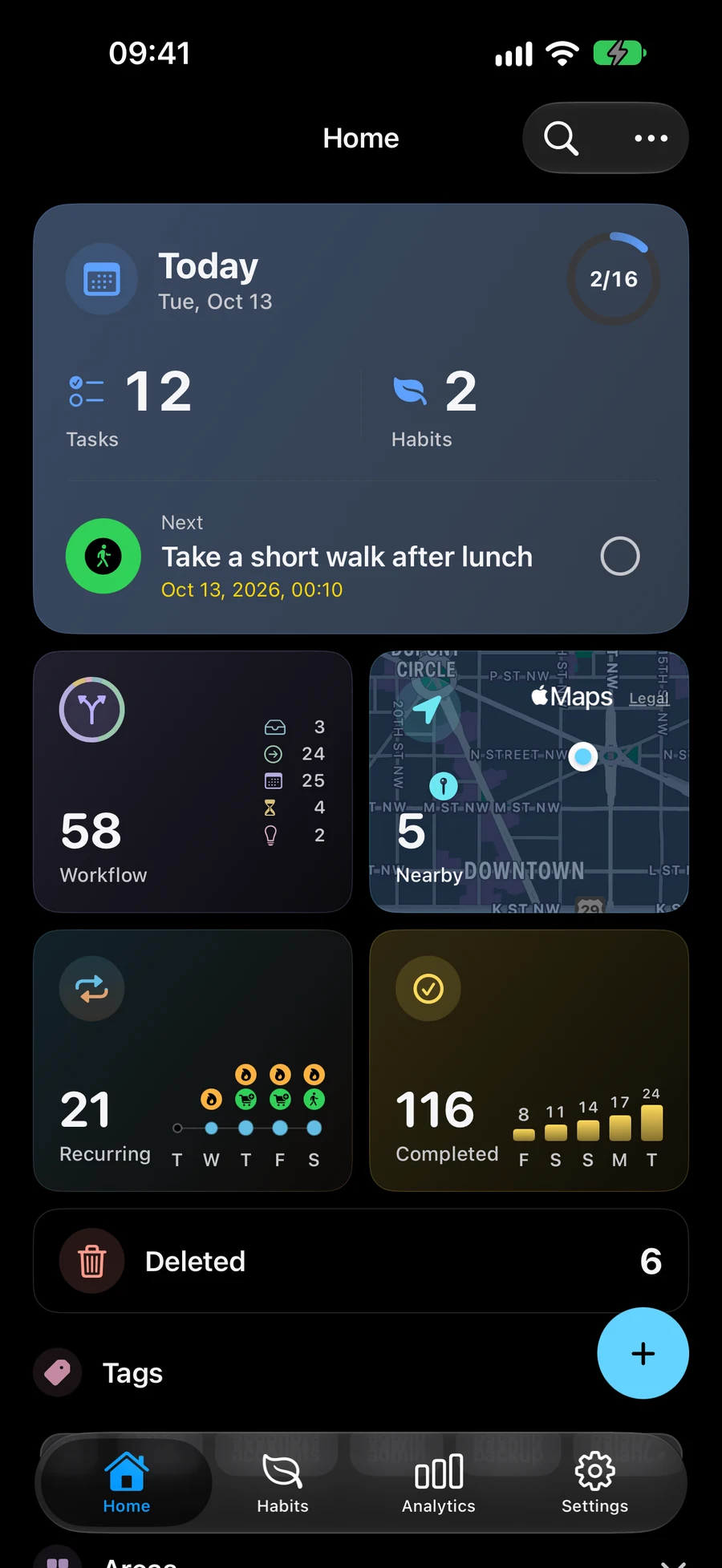
Capture ideas before choosing what to do
Save ideas in Inbox until you are ready to choose a next step. Use Clarify to work through them and save each decision.
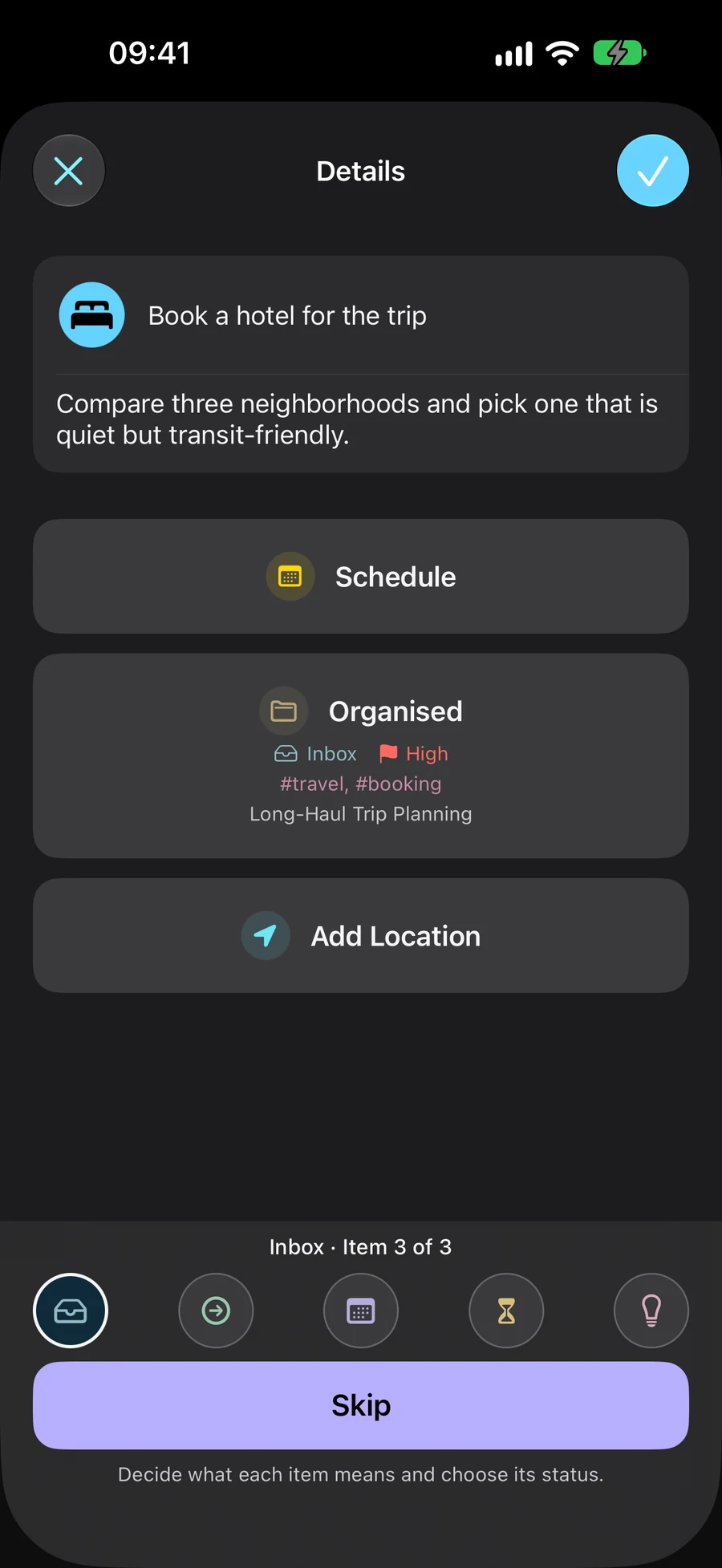
Give each item its own status
Inbox, Next Actions, Scheduled, Waiting For and Someday describe where a commitment stands. A task, list, project or area has its own status. Dates remain a separate choice.
- Inbox: capture what you have not yet clarified
- Next Actions: choose what you can do next
- Scheduled: set aside what you plan to do later; a date is optional
- Waiting For: keep track of an outside response or outcome
- Someday: save ideas to reconsider in a future review
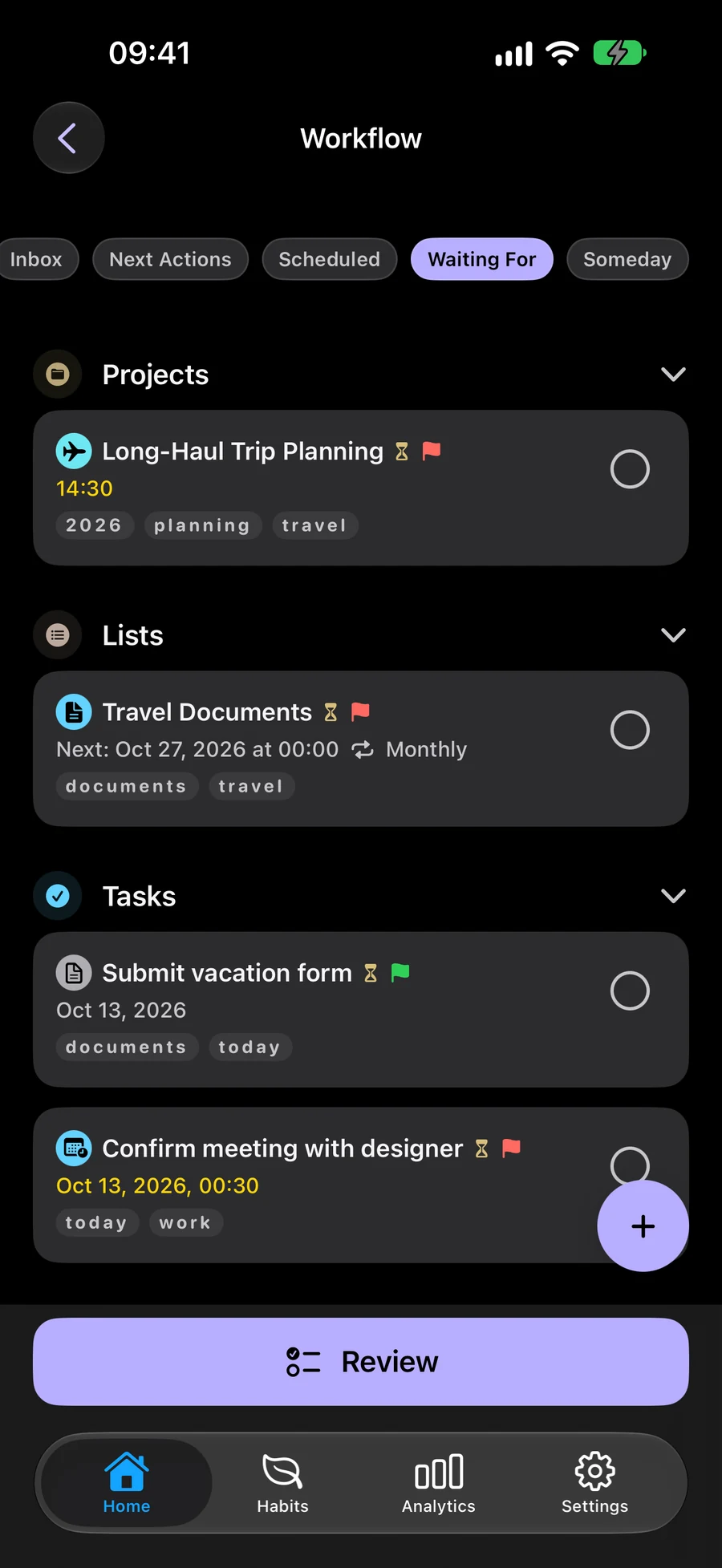
Review your commitments and next actions
Use Review to revisit your commitments and their next actions. If you pause, you can resume the review later. GTD is optional and off by default, so you can keep your usual planning workflow.
Use GTD with widgets and ShortcutsChoose which plans you see with Spaces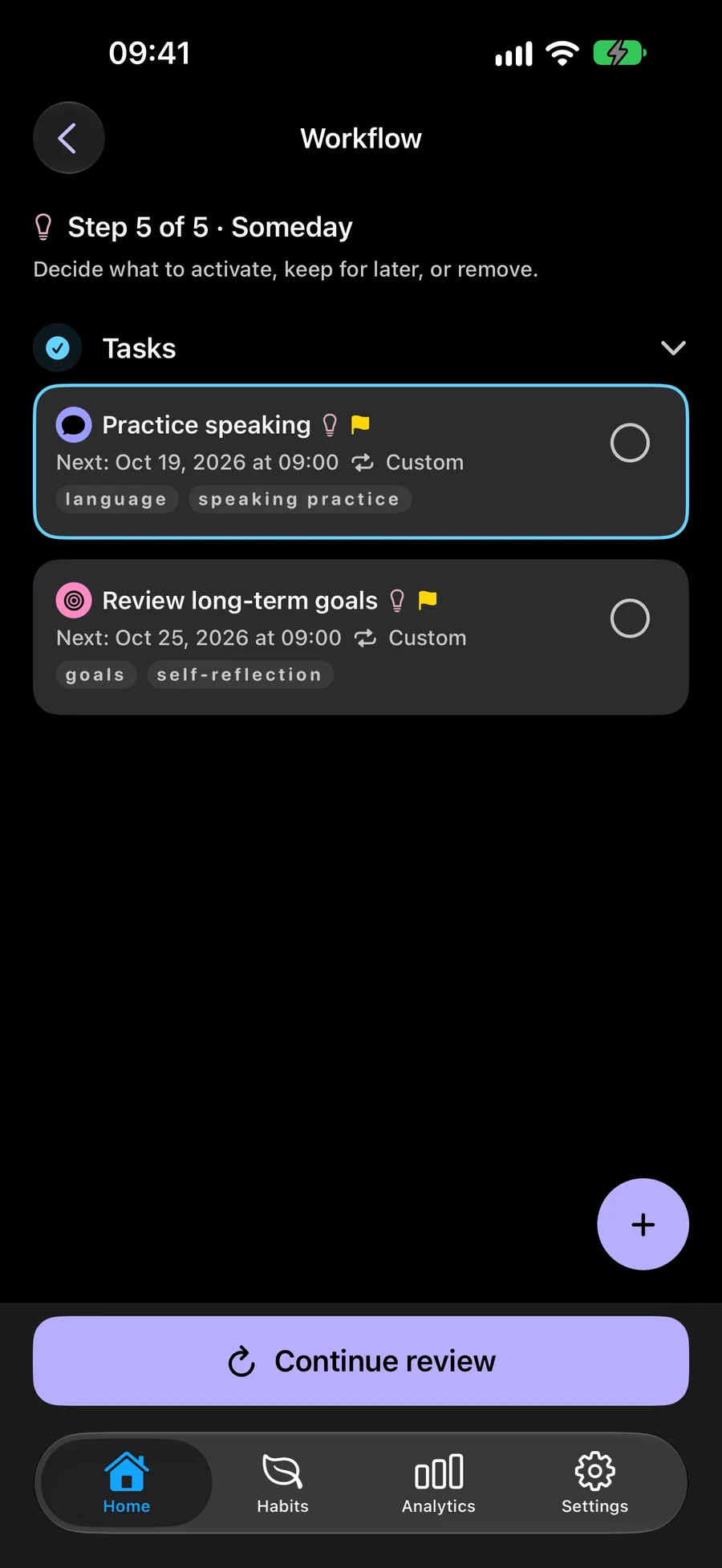
How to start using GTD in Mement
Start with an idea such as “Create a reading corner”. Capture it before deciding on a date or the next action.
- Turn on Use GTD in Settings → General → Organization.
- Create a Task from Home’s + menu. New tasks start in Inbox unless you choose another status.
- Open Workflow → Inbox and choose Clarify. Write a concrete next action, choose its status and save. For example, “Measure the space beside the window” can be a Next Action.
- Return to Workflow → All items and choose Review items. Check each stage. If you pause, choose Continue review to resume later.
Your first GTD review in Mement
Use a review to check the plans you have already saved. Work through your commitments and decide what still needs your attention; dates and GTD statuses remain separate choices.
- Turn on Use GTD in Settings → General → Organization. Capture an idea in Inbox, such as creating a reading corner.
- Open Workflow → Inbox and choose Clarify. Name a concrete next action, such as measuring the space beside the window. Choose its status and save your decision.
- Open Workflow → All items and choose Review items. Save edits in the existing editor. For a Project or Area, use Next in its review details to acknowledge the item; saving edits alone does not advance the review.
- Continue through the review stages. If you stop, use Continue review in the same Space and review scope to resume. A Project and its Tasks retain independent statuses. Return to Next Actions when you want to choose something to do.
Continue exploring
Try a GTD example
Follow four steps to plan a reading corner. The task, status and details change at each step. This example is fictional; nothing is saved to Mement.
Create a reading corner
- What you know
- A comfortable place to read beside the window.
- Next action
- Not decided yet
Capture the idea
Add “Create a reading corner” to Inbox. You can choose the next action and a date later.
- Capture the idea Add “Create a reading corner” to Inbox. You can choose the next action and a date later.
- Choose a next action To start, measure the space beside the window. Choose Next Actions for this task because you can do it now.
- Wait for a response After sending the measurements to the carpenter, create a separate task for receiving the sketch. Choose Waiting For to keep track of the response you need.
- Schedule the next decision When the sketch arrives, choose Scheduled for approving it and set a time separately. You choose both the status and the date.
Frequently asked questions
Is this a separate set of tasks?
No. The workflow classifies the same Tasks, Lists, Projects and Areas. Habits keep their own tracking system.
Where can I learn about the GTD method?
The official David Allen Company website explains the method. Mement has its own implementation with five statuses.
Does choosing Scheduled automatically set a date?
No. A GTD status and a Schedule date are independent in Mement. Choose Scheduled when it fits the commitment, then add a date separately if needed. Adding a date does not change the GTD status.
Does a Project’s GTD status change its Tasks?
No. Each Task, List, Project and Area has its own status. Changing one item’s status does not change the statuses of items inside it. Completing one task does not automatically complete its Project.
Try GTD with your existing plans
Turn on GTD when you want to use it. Work with the same tasks, lists, projects and areas.
View on the App Store