
Organize your plans
Mement helps you organize tasks, lists, projects and areas. Capture a task now, then add dates, reminders and the structure your plans need.
- Areas
- Projects
- Lists
- Tasks
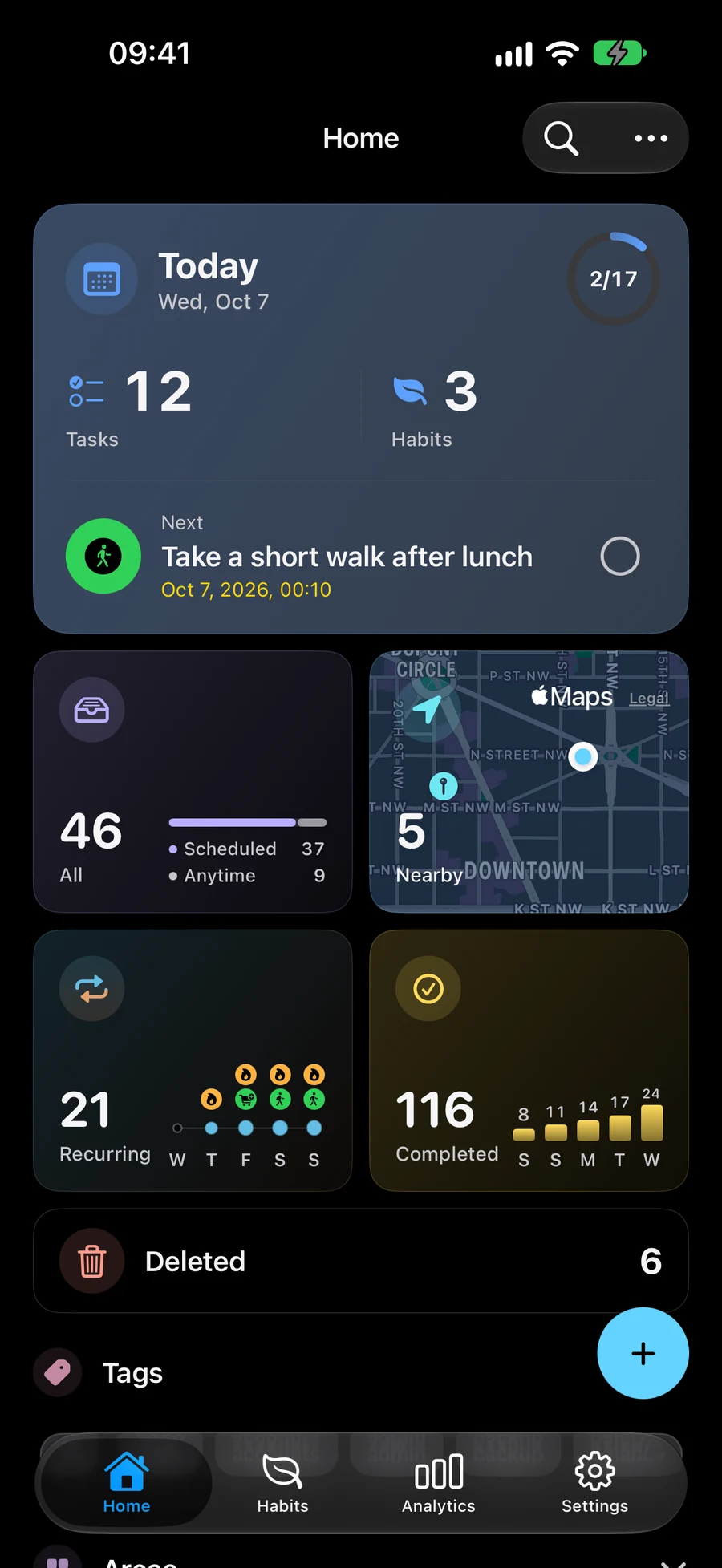
Capture a task with the details it needs
Create a task, choose a date or time, and add a reminder when you need one. Use recurrence for work that comes around again. Tasks, Lists, Projects, Areas and Habits support files, photos and links. In item editors, Attach becomes Attached with previews; removal sits beside each row. Location is below the materials, with a small map and an optional full-screen view. Open materials from the editor or the record’s details. In “Attach”, tap “Arrive” or “Leave” in the location reminder title to choose when to be notified. “Arrive” is selected by default. Save keeps that choice; notification and location permissions still apply.
- Date, time and recurring reminders
- Location reminders on supported devices
- Quick search and familiar task actions
Use Lists, Projects and Areas
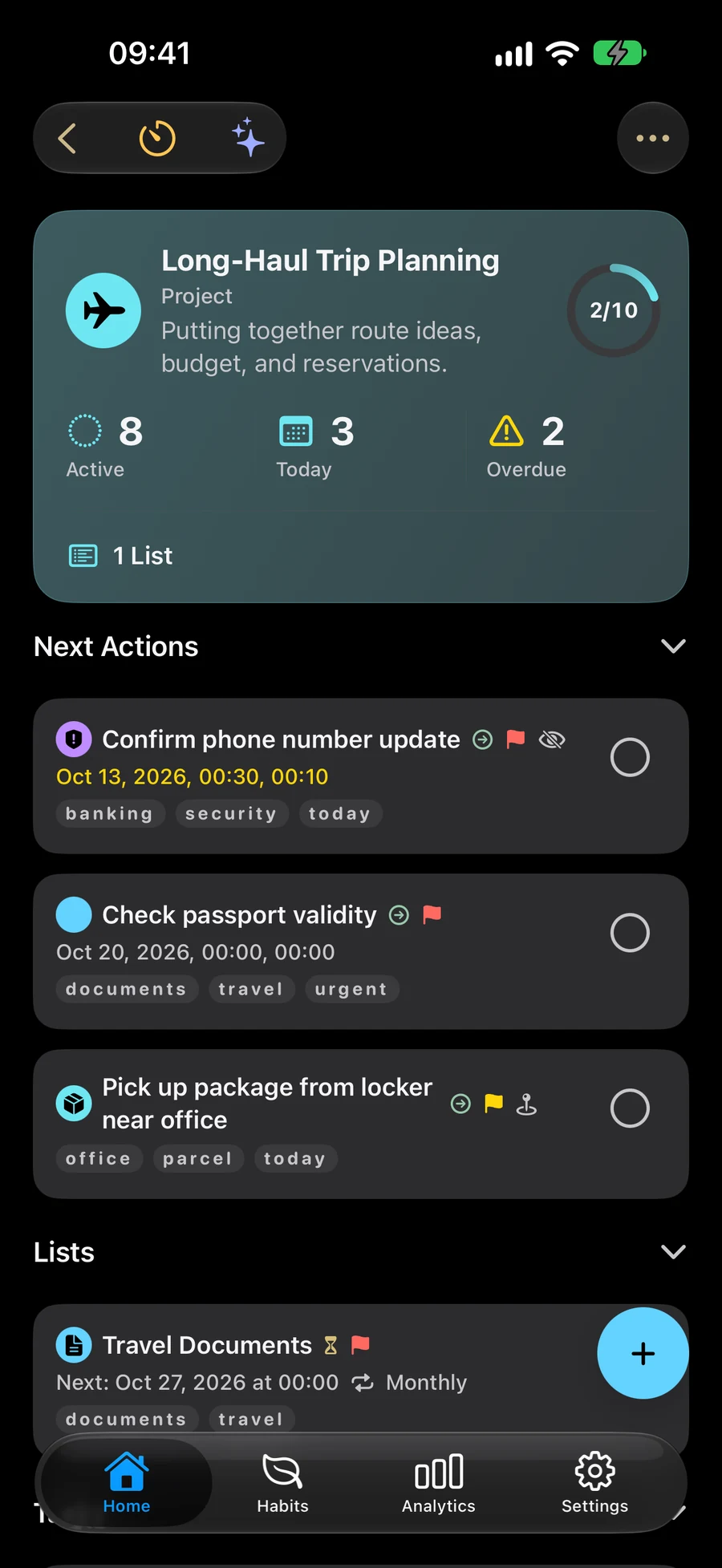
Lists gather related tasks. Use Projects for larger outcomes and Areas for ongoing responsibilities. Smart Filters can keep matching items in view automatically.
Explore your project structure in Big ViewPlan focused work and errands
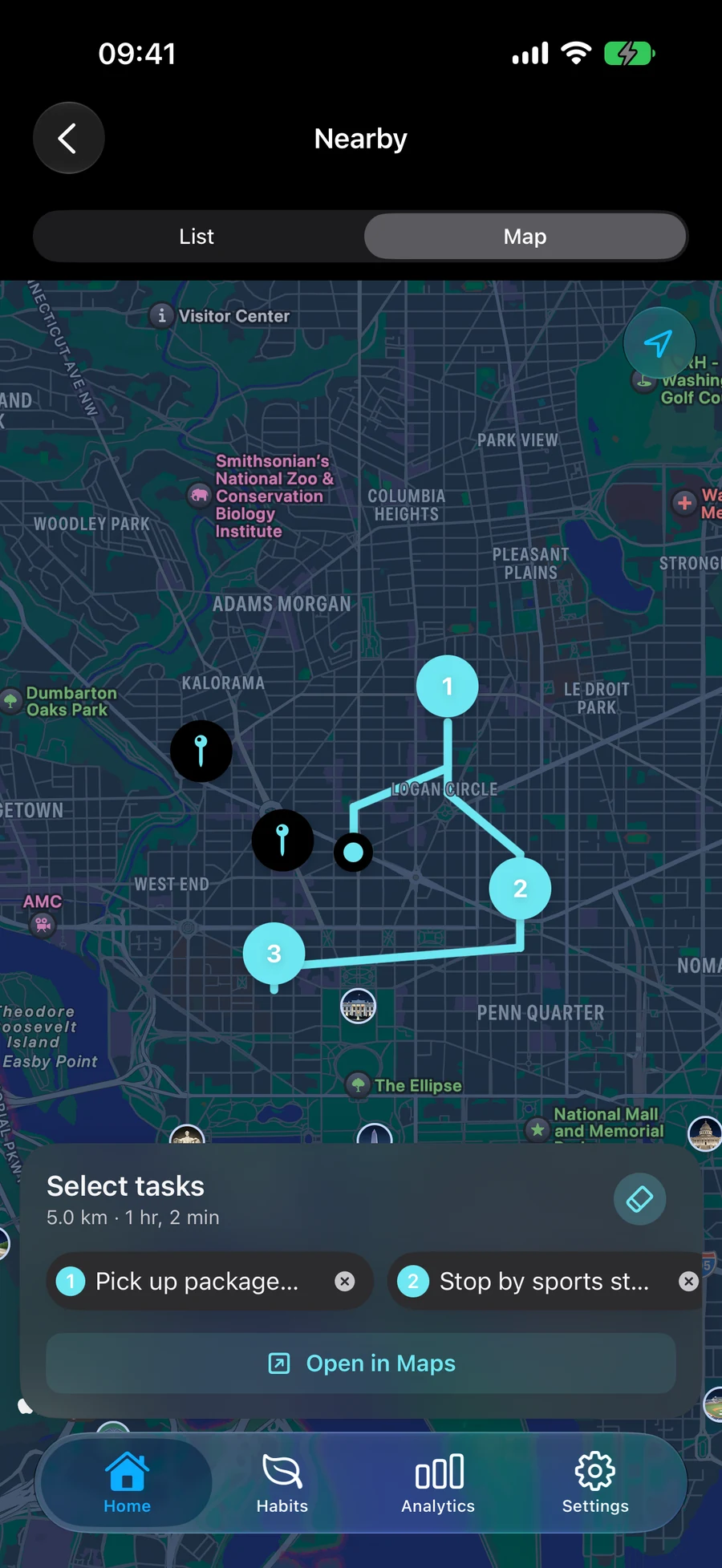
Use a Space to show the plans for one part of your day. Start a Session to spend dedicated time on a task, project or habit. For errands, arrange stops in Nearby and open the route in Apple Maps.
Choose which plans you see with SpacesPlan errands with Nearby tasks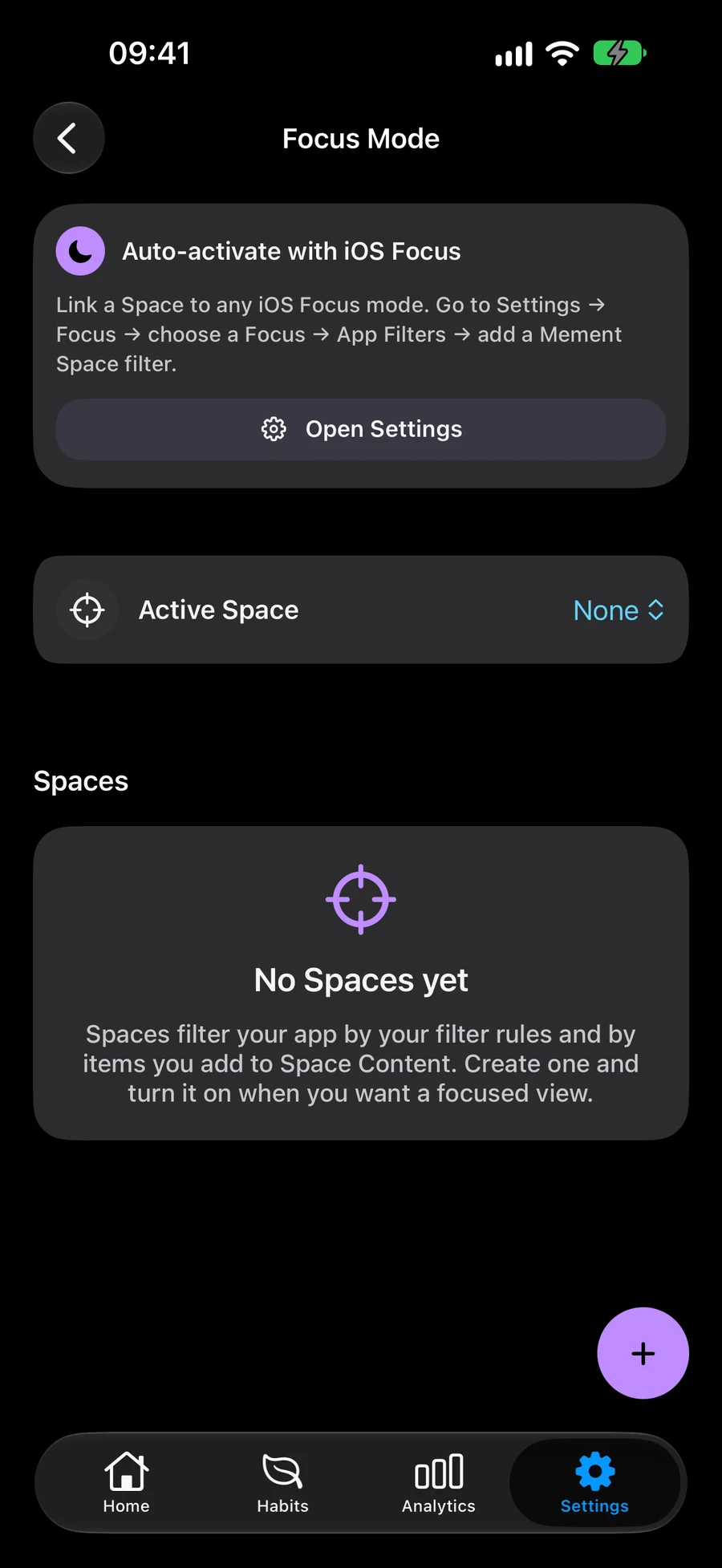
How to organize a small project in Mement
Try planning a reading corner. Create a Project for the outcome and a Task for each action. Add dates where they help.
- Create a Project called “Reading corner” to keep the plan together.
- Create Tasks called “Measure the space beside the window” and “Choose a shelf”. Select the Project as their parent.
- Add a date or reminder to a Task when it needs one, then save your changes.
- Open the Project to review its Tasks and mark each one done when you finish it.
Continue exploring
Frequently asked questions
Do I need GTD to organize tasks?
No. Lists, Projects, Areas, dates and reminders work without enabling GTD.
Does opening a route complete my tasks?
No. Apple Maps handles navigation. You decide when a task is done.
What is the difference between a List, Project and Area?
In Mement, a List holds Tasks. A Project can hold Tasks and Lists for an outcome. An Area can hold Tasks, Lists and Projects for an ongoing responsibility, such as home or work.
Can I create a task without choosing a date?
Yes. A title is enough to save a Task. You can add a parent, date, reminder and other details later. You do not need to enable GTD to capture a task.
Start organizing your tasks
Capture a task, then add it to a List, Project or Area when you need more structure.
View on the App Store