
Try it in Mement
- Keep the outcome in a List or Project.
- Create one Task: “Open the form and find the required documents”.
- Use GTD Next Actions when the action is ready. Start a five-minute Session if a short interval helps.
Define a stopping point
For this attempt, finding the document list is enough. Put the next action in Mement before stopping so returning does not require reconstructing the whole plan.
Let the timer end without pretending the work is done
Reaching zero does not complete the Task. Stop the Session, extend it or explicitly complete the Task. Mement does not automatically run work-and-break cycles.
How it works in Mement
Use GTD to decide what happens next
Choose the status that describes the commitment
Inbox holds something you still need to think through: “A reading corner by the window”. Next Actions holds work you are ready to do: “Measure the space beside the window”. Scheduled describes work you have chosen to plan: “Approve the shelf sketch”. Add the actual date separately when there is a time agreement.
Waiting For records an outside response or result, such as “Receive the carpenter’s sketch”. You can add optional text explaining who or what you are waiting for. Someday keeps an idea you want to revisit, such as “Explore a larger bookcase later”. These five choices help you decide what to inspect at different times.
Tasks, Lists, Projects, and Areas each have their own status. Habits and Spaces serve other purposes and do not use this classification. A Project’s status does not change its child Tasks’ statuses. Existing records without a recognized classification begin in Inbox, so your first Inbox can include plans you already created.
Turn one idea into a useful next action
Open the reading-corner idea from Inbox during Clarify. If it represents a result with several steps, keep that result in a Project and create or choose a Task such as “Measure the space beside the window”. Give the Task Next Actions when it is ready to do. Review the Project’s own status independently.
After taking measurements, you might create “Receive the carpenter’s sketch” as Waiting For. Once the sketch arrives, “Approve the shelf sketch” can become a separate ready or scheduled action. The statuses describe your decisions about those records; moving a record between them does not manufacture the next Task for you.
You can still use dates, tags, priorities, Spaces, and the hierarchy alongside GTD. A work tag plus Next Actions can form a Smart filter for actionable professional work across several Projects.
Set timing and completion separately
Choose a date and reminder when a commitment belongs to a particular time. Scheduled itself supplies no date. Waiting For can have a reminder for your own follow-up, and Next Actions can remain undated until you decide when to act.
To change classification, use a saved row’s Status menu or edit Organise → Status and Save. A completed record stays completed when you reclassify it. Turning GTD off preserves saved statuses and returns the ordinary All view, so the rest of your planning remains usable.
Use clarification and review for different decisions
Clarify begins with Inbox records that need a decision. Review revisits the records already classified. Use a status tab’s Review for that category, or All items → Review items to work more broadly through saved commitments.
An editor step advances after Save; Skip keeps the saved record unchanged. A Project or Area outside Inbox opens its details so you can inspect the result, contents, and Next Actions. Choose Next to acknowledge that review step. Saving a child Task alone does not acknowledge the Project’s review.
Closing a full review retains progress in that review context. Reopen the same Space and scope through Continue review when you want to continue. The weekly notification opens Analytics; start this GTD review inside Workflow when you are ready to make decisions about your plans.
Time work with a Session and choose how to finish
Choose a timer or a stopwatch
For a 25-minute writing interval, open the Task and choose Timer with the 25-minute preset. Other presets are 15 and 45 minutes; a custom countdown can be 5 to 180 minutes. Start, pause for an interruption and resume. Paused time does not count toward active time.
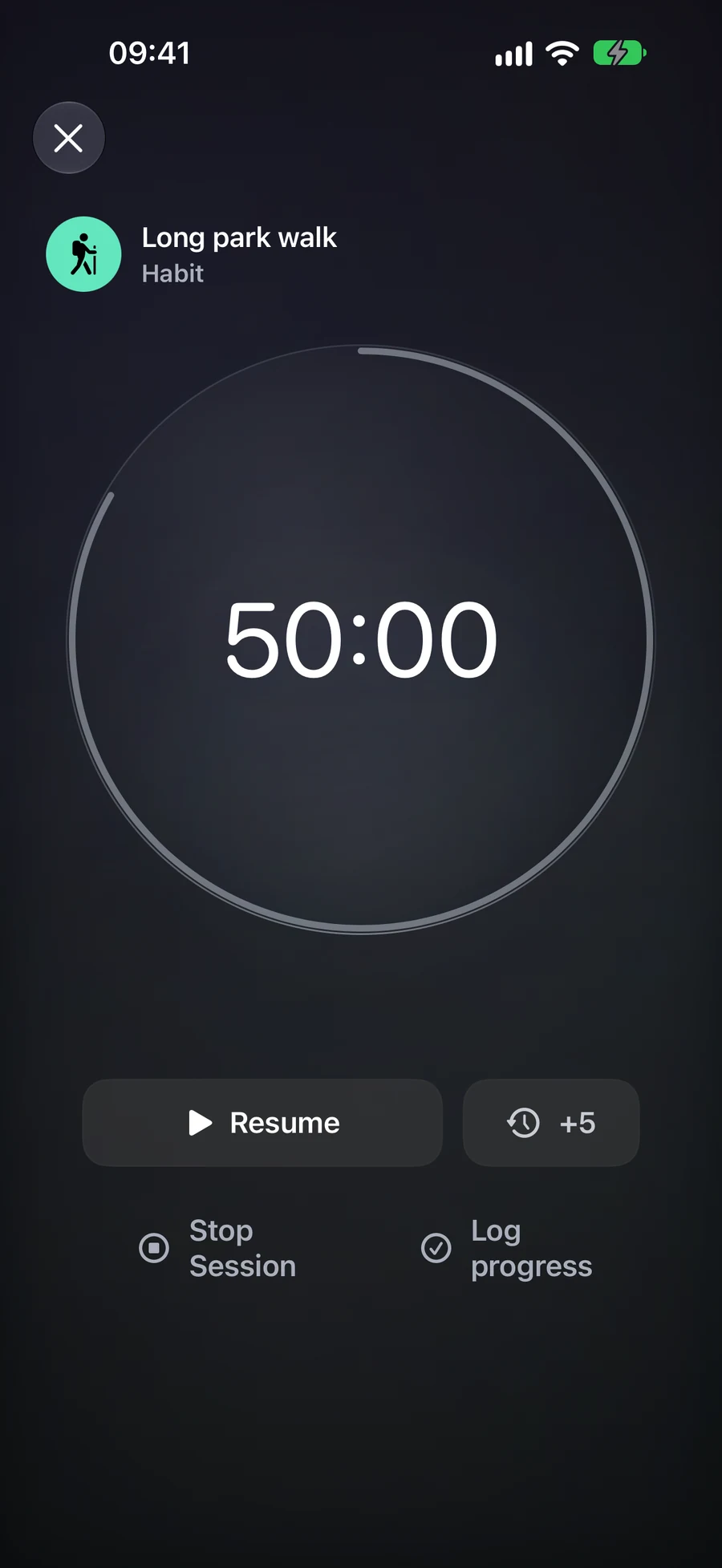
At zero, the timer stops accumulating active time and waits for your decision. You can add five minutes, stop the Session or complete its Task. Adding time while paused keeps it paused; adding time after zero resumes the countdown. An unanswered countdown closes after its 15-minute completion window.
Stopwatch starts at zero and suits work whose duration you want to measure as you go. For a Duration Habit with a limit, it is the default mode: you can see elapsed practice or consumption without treating the target as an automatic success. It has no add-time or countdown-zero step. Both modes have an eight-hour lifetime from the original start, including pauses.
Choose what the ending should record
Stop Session records the end of the interval and leaves the item unfinished. For a Task, Complete Item uses the Task’s ordinary completion rules and ends the Session. Reaching zero alone does not complete the Task. A List, Project or Area Session offers Stop Session, which leaves the container and its contents unchanged.
For example, you may spend 25 minutes on a Project containing several Tasks, then stop without declaring the Project finished. You can complete an individual Task through its normal screen when it is actually done. A Session helps record the interval; it does not decide which commitments you fulfilled.
A Habit Session offers its own progress action. A check-in Habit records the practice. A Duration Habit opens Log progress with active minutes suggested for confirmation. Count and Quantity need values in their own units; time is not converted into pages or repetitions. With a checklist, finish the actions first. Cancelling the checklist or numeric log leaves the Session available to retry; Stop Session records no Habit progress.
Return to the same Session
One Session can be current for your iCloud account. If you start from another item, Mement asks what to do with the existing Session before starting the new one. Home, the full timer, widgets and supported Live Activities show that Session, so opening it again does not create another timer.
With iCloud available, another device can open, pause, resume or stop the same Session after changes arrive. The local timer remains usable offline and synchronizes later. A Live Activity is created on its device: syncing Session state does not automatically create a new Live Activity on every other device.
Analytics reports active time, completed Sessions, item outcomes and average duration. Sessions shorter than one active minute stay out of the metrics. A stopwatch contributes time but has no planned-duration success rate. Session minutes do not directly add points to Productivity Score; completing a Task still affects ordinary Task statistics.
A plan to adapt
Fictional example. Copying or downloading this text does not create records in Mement.