
Try it in Mement
- Open the Habits tab and create a Habit. Give it a name that says what you will practice or measure.
- Choose Check-in, Count, Duration or Quantity. For a numeric type, choose Build or Limit and enter the target or maximum; add a unit for Quantity.
- Choose the goal period in “How will you track it?”. In “Schedule”, set the start date and choose a schedule preset or a custom calendar rule. Check the Solar or Lunar calendar and the schedule summary.
- If you need timed reminders, turn them on, open their time controls, and add up to five times. Save after checking the goal, schedule, and reminders together.
- Open the saved Habit, record a real practice or amount, and check the result in its recent history.
Choose what you will enter
Use Check-in when a yes-or-no record is enough: “Stretch” can be one check-in on each scheduled day. Count records occurrences, such as cups of coffee. Duration records minutes. Quantity accepts your own unit, such as pages or kilometres. A one-off action, such as buying a book, can stay a Task alongside a reading Habit.
Build means reaching a target. To read for ten minutes a day, choose Duration, Build, 10 and a daily goal. After four minutes, log 4; after another six, log 6. Both entries contribute to the same day, and the target is reached at ten.
Limit means staying within a maximum. For at most two coffees a day, choose Count, Limit, 2 and a daily goal. Log each coffee you actually drink. The day succeeds when it closes within the limit; exceeding two resolves it as over the limit immediately. An open day is still in progress, even when no consumption has been recorded.
Set the amount and its goal period
A goal period sets which entries are added together. A daily target starts again the next day. A weekly target adds entries within the calendar week; a monthly target uses the calendar month. For 100 pages a week, choose Quantity, the unit “pages”, Build, 100 and Weekly. Log pages as you read them throughout that week.
The goal period and Schedule answer different questions. The goal period determines which entries count toward one target; Schedule determines when the Habit is scheduled. A weekly or monthly numeric goal can keep its selected calendar schedule. Check-in goals use a daily period.
Periods follow the Habit’s saved time zone. A first weekly or monthly period starts on the start date and ends with that calendar period; Mement does not reduce the target for a short first period. Choose an appropriate first target when starting late in a week or month.
Build a schedule with presets or a custom rule
Schedule offers Daily, Weekdays, Weekends, Weekly, Every two weeks, Monthly, Quarterly, Every six months, Yearly, and Custom. Choose the start date as well: it sets when the Habit begins. For practice every Monday, Wednesday, and Friday, use Custom with a weekly interval and select those days.
Custom rules can use hours, days, weeks, months, or years. For practice every other week, set an interval of two weeks and select Monday and Wednesday. You can also choose a position within a larger period and count from its beginning or end, such as the last day of each month. Read the summary to confirm both the interval and position.
The sun and moon control selects the calendar used for the start date and calendar rule: Solar is Gregorian, Lunar is Hebrew. Choose the calendar before setting a rule tied to its months or years. The Habit editor does not offer the Task editor’s By item event-triggered mode.
Custom repeat hides the unit selector when there is only one choice. Direction is hidden for hours and Solar months; Lunar months retain From start/From end.
Add reminder times without changing the goal
In the Habit editor, turn on reminders and open the time controls. Set the first time, then choose Add time for another. You can save up to five times; when several are present, use the remove control beside a time to delete it. For reading at 08:00 and 20:00, both reminders lead back to the same Habit and its progress history.
Reminder times prompt you to practice on the Habit’s scheduled days. They do not each create another target or log an entry. After a reminder, record what you actually did: enter the count, minutes, or quantity in the Habit’s unit, or mark a Check-in Habit as done.
Hourly Custom repetition is offered only when there are no more than one reminder time. If you want several fixed times in a day, use those times with a compatible daily or calendar rule. After changing the times, review Schedule before saving.
In “Schedule”, set the start date, recurrence, reminder times and notification/privacy options. Turning off custom times keeps the selected preferences. Add and edit checklist actions in “How will you track it?”; “Attach” holds files, photos, links and a place. Tracking and notes expand smoothly, with an immediate layout when Reduce Motion is enabled.
Record progress and check your setup
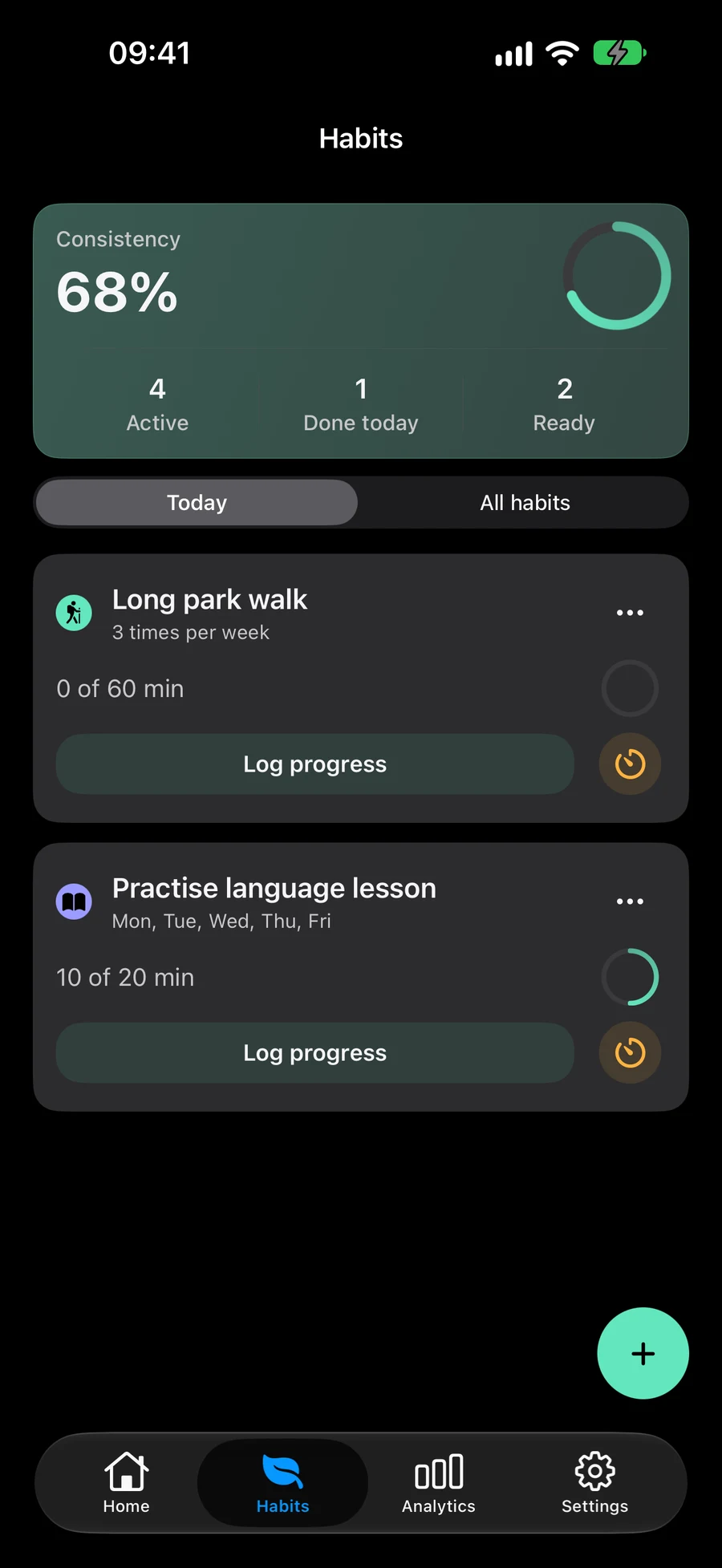
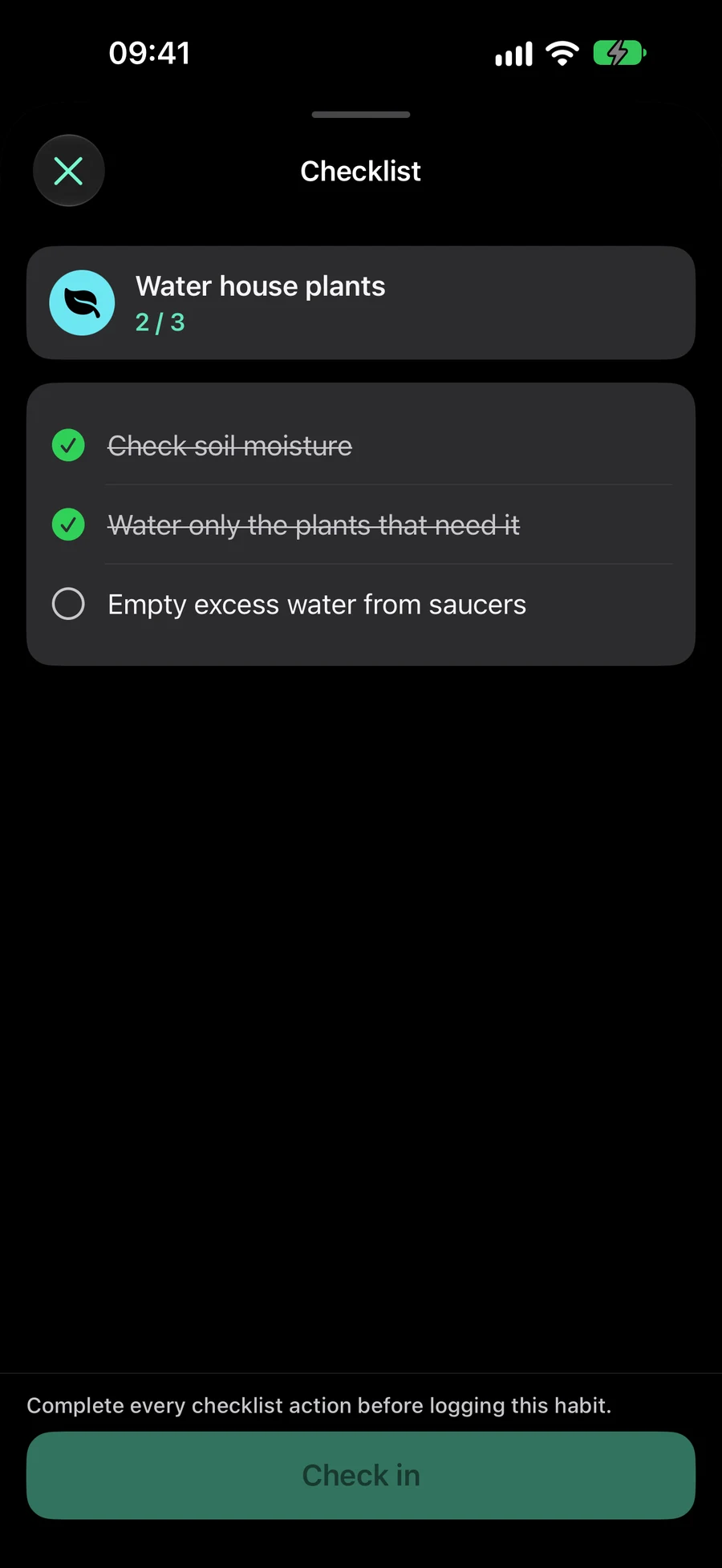
Check in records the practice directly. Log progress opens an amount field with quick choices, a projected result and an optional note. You can add several entries. A checklist must be finished before the final check-in or progress confirmation becomes available.
A Session can time any Habit. For Duration, its active minutes can prefill Log progress for your confirmation. Count and Quantity still require their own values. You can also reach scheduled Habits from Today, widgets and Shortcuts; a checklist may bring you into Mement first.
If a Habit is missing today, inspect All habits, its start date, Schedule rule, and pause or archive state. An active Space can also hide Habits through Show habits. Older Habits may retain a flexible weekly quota; reaching that quota can affect their availability. During creation, Mement can suggest a start date, icon, or rhythm where supported; review a suggested rhythm before accepting it.
Before you finish
- Check that the saved summary describes your intended amount and schedule.
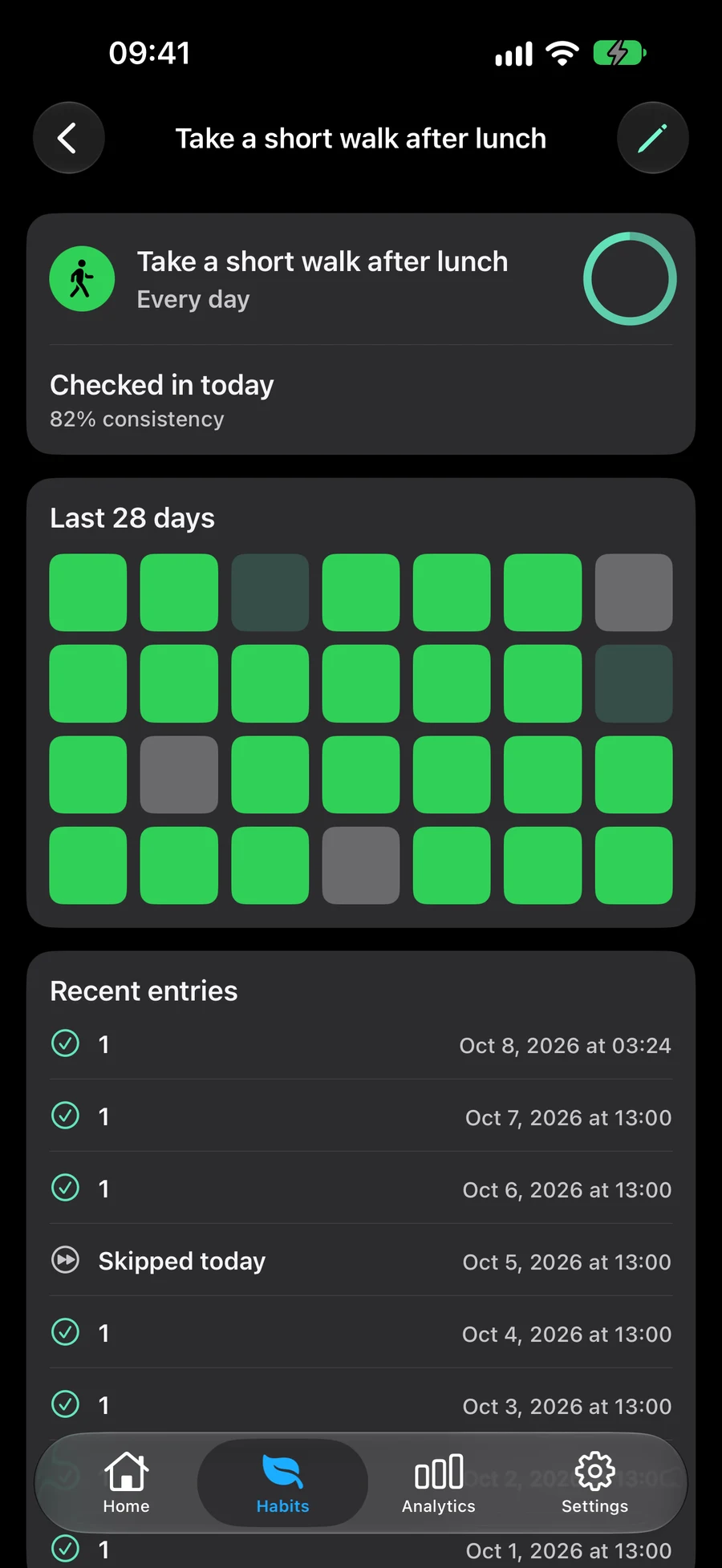
- After logging, open history and confirm the amount and day of the entry.
- The goal period, Schedule rule, selected calendar, and reminder times each match the way you intend to practice.