
Try it in Mement
- Create a daily Check-in Habit named “Ready to leave”.
- Add the few ordered checklist actions you need. Add reference notes, links or materials only when they help.
- Set a reminder if useful. Work through the checklist, then explicitly Check in.
Keep the result distinct from its steps
Checklist actions are simple text, not independently scheduled Tasks. They have no separate priority, assignee or recurrence. Checking the last action enables the final progress step; it does not record the Habit automatically.
Change the routine when life changes
If the checklist has become another obstacle, remove optional steps. Pause a routine during a longer break rather than archiving it indefinitely. A widget checklist action brings you into Mement to finish the steps.
How it works in Mement
Follow a Habit routine with a checklist and materials
Work through a routine, then record its result
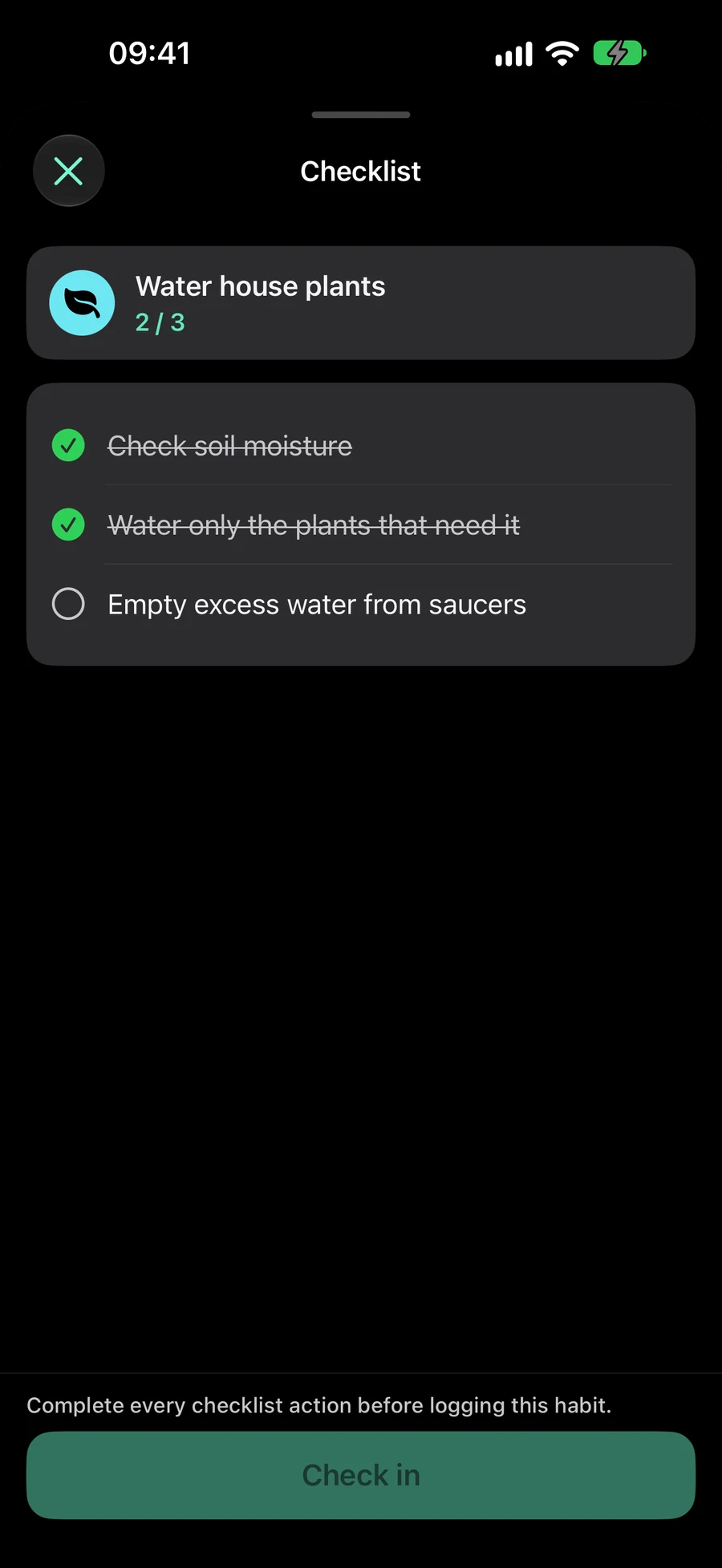
For a plant-care Habit, a checklist might read “Check the soil”, “Water the plants that need it” and “Empty the trays”. The Habit can keep a photo of the plants or a care guide beside these steps. This is an illustrative setup; choose steps and a tracking type that match your own routine.
Each action has a title and a checkmark. It does not have its own due date, priority or recurrence, and it does not become a separate Task. Use a Task when an action needs independent planning; use the checklist when it is part of the Habit’s repeated procedure.
Checking the last action enables the final Check in or Log progress action. It does not save Habit progress by itself. For a check-in Habit, confirm that you practised. For a measured Habit, enter the amount you actually completed. For example, a completed preparation checklist does not establish how many minutes you exercised.
Checkmarks last for the Habit’s current goal period: a day, calendar week or calendar month in its saved time zone. A daily routine starts unchecked next day; a weekly checklist resets next week. Editing preserves current-period marks for actions you keep. A newly added action starts unchecked.
In “Schedule”, set the start date, recurrence, reminder times and notification/privacy options. Turning off custom times keeps the selected preferences. Add and edit checklist actions in “How will you track it?”; “Attach” holds files, photos, links and a place. Tracking and notes expand smoothly, with an immediate layout when Reduce Motion is enabled.
Add reference material you will use
Attachments can be files, photos or HTTP/HTTPS links. Choose a file or photo with the system picker, or enter a web link. You can attach up to 12 items; each file or photo must be no larger than 25 MB. Review the selected material before saving, and remove anything you added by mistake.
From Habit details, tap an attachment to open it inside Mement using the browser or Quick Look. A photo can show a target posture, a file can contain a practice plan, and a link can open the instructions you follow. Formats without a content thumbnail still show their file type.
Tasks, Lists, Projects, Areas and Habits support files, photos and links. In item editors, Attach becomes Attached with previews; removal sits beside each row. Location is below the materials, with a small map and an optional full-screen view. Open materials from the editor or the record’s details. In “Attach”, tap “Arrive” or “Leave” in the location reminder title to choose when to be notified. “Arrive” is selected by default. Save keeps that choice; notification and location permissions still apply.
Use the same checklist from other entry points
A Habit row shows checklist progress as completed actions out of the total. Its tracking action opens a focused checklist view. A widget brings you into Mement to finish the checklist before logging, instead of silently recording a completed routine.
Shortcuts can mark individual checklist actions, but final Habit progress still needs confirmation after every action is complete. Finishing a Habit Session also opens the checklist before check-in or numeric logging. Stop Session ends the timer without recording Habit progress.
Checklist actions are unavailable while the Habit is paused, archived, not yet started, not scheduled that day or intentionally skipped. Check the Habit’s status and schedule if the actions cannot be changed. Analytics uses the confirmed Habit entries, so checked actions alone do not raise consistency.
Set up a Habit that measures what you mean
Choose what you will enter
Use Check-in when a yes-or-no record is enough: “Stretch” can be one check-in on each scheduled day. Count records occurrences, such as cups of coffee. Duration records minutes. Quantity accepts your own unit, such as pages or kilometres. A one-off action, such as buying a book, can stay a Task alongside a reading Habit.
Build means reaching a target. To read for ten minutes a day, choose Duration, Build, 10 and a daily goal. After four minutes, log 4; after another six, log 6. Both entries contribute to the same day, and the target is reached at ten.
Limit means staying within a maximum. For at most two coffees a day, choose Count, Limit, 2 and a daily goal. Log each coffee you actually drink. The day succeeds when it closes within the limit; exceeding two resolves it as over the limit immediately. An open day is still in progress, even when no consumption has been recorded.
Set the amount and its goal period
A goal period sets which entries are added together. A daily target starts again the next day. A weekly target adds entries within the calendar week; a monthly target uses the calendar month. For 100 pages a week, choose Quantity, the unit “pages”, Build, 100 and Weekly. Log pages as you read them throughout that week.
The goal period and Schedule answer different questions. The goal period determines which entries count toward one target; Schedule determines when the Habit is scheduled. A weekly or monthly numeric goal can keep its selected calendar schedule. Check-in goals use a daily period.
Periods follow the Habit’s saved time zone. A first weekly or monthly period starts on the start date and ends with that calendar period; Mement does not reduce the target for a short first period. Choose an appropriate first target when starting late in a week or month.
Build a schedule with presets or a custom rule
Schedule offers Daily, Weekdays, Weekends, Weekly, Every two weeks, Monthly, Quarterly, Every six months, Yearly, and Custom. Choose the start date as well: it sets when the Habit begins. For practice every Monday, Wednesday, and Friday, use Custom with a weekly interval and select those days.
Custom rules can use hours, days, weeks, months, or years. For practice every other week, set an interval of two weeks and select Monday and Wednesday. You can also choose a position within a larger period and count from its beginning or end, such as the last day of each month. Read the summary to confirm both the interval and position.
The sun and moon control selects the calendar used for the start date and calendar rule: Solar is Gregorian, Lunar is Hebrew. Choose the calendar before setting a rule tied to its months or years. The Habit editor does not offer the Task editor’s By item event-triggered mode.
Custom repeat hides the unit selector when there is only one choice. Direction is hidden for hours and Solar months; Lunar months retain From start/From end.
Add reminder times without changing the goal
In the Habit editor, turn on reminders and open the time controls. Set the first time, then choose Add time for another. You can save up to five times; when several are present, use the remove control beside a time to delete it. For reading at 08:00 and 20:00, both reminders lead back to the same Habit and its progress history.
Reminder times prompt you to practice on the Habit’s scheduled days. They do not each create another target or log an entry. After a reminder, record what you actually did: enter the count, minutes, or quantity in the Habit’s unit, or mark a Check-in Habit as done.
Hourly Custom repetition is offered only when there are no more than one reminder time. If you want several fixed times in a day, use those times with a compatible daily or calendar rule. After changing the times, review Schedule before saving.
In “Schedule”, set the start date, recurrence, reminder times and notification/privacy options. Turning off custom times keeps the selected preferences. Add and edit checklist actions in “How will you track it?”; “Attach” holds files, photos, links and a place. Tracking and notes expand smoothly, with an immediate layout when Reduce Motion is enabled.
Record progress and check your setup
Check in records the practice directly. Log progress opens an amount field with quick choices, a projected result and an optional note. You can add several entries. A checklist must be finished before the final check-in or progress confirmation becomes available.
A Session can time any Habit. For Duration, its active minutes can prefill Log progress for your confirmation. Count and Quantity still require their own values. You can also reach scheduled Habits from Today, widgets and Shortcuts; a checklist may bring you into Mement first.
If a Habit is missing today, inspect All habits, its start date, Schedule rule, and pause or archive state. An active Space can also hide Habits through Show habits. Older Habits may retain a flexible weekly quota; reaching that quota can affect their availability. During creation, Mement can suggest a start date, icon, or rhythm where supported; review a suggested rhythm before accepting it.
A plan to adapt
Fictional example. Copying or downloading this text does not create records in Mement.