
Try it in Mement
- Open Big View from Home’s More menu or with a two-finger pinch-in on Home.
- Tap an Area, Project, or List sphere to open its contents; tap a Task sphere for its details.
- Pinch out to zoom in and drag empty space to move around a zoomed view.
- Pinch in to zoom back out. Once fully zoomed out, pinch in again to return one level; at the root, this closes Big View.
- When reorganizing, long-press a sphere to pick it up, then drag it to another sphere and inspect the proposed result.
Read the hierarchy before changing it
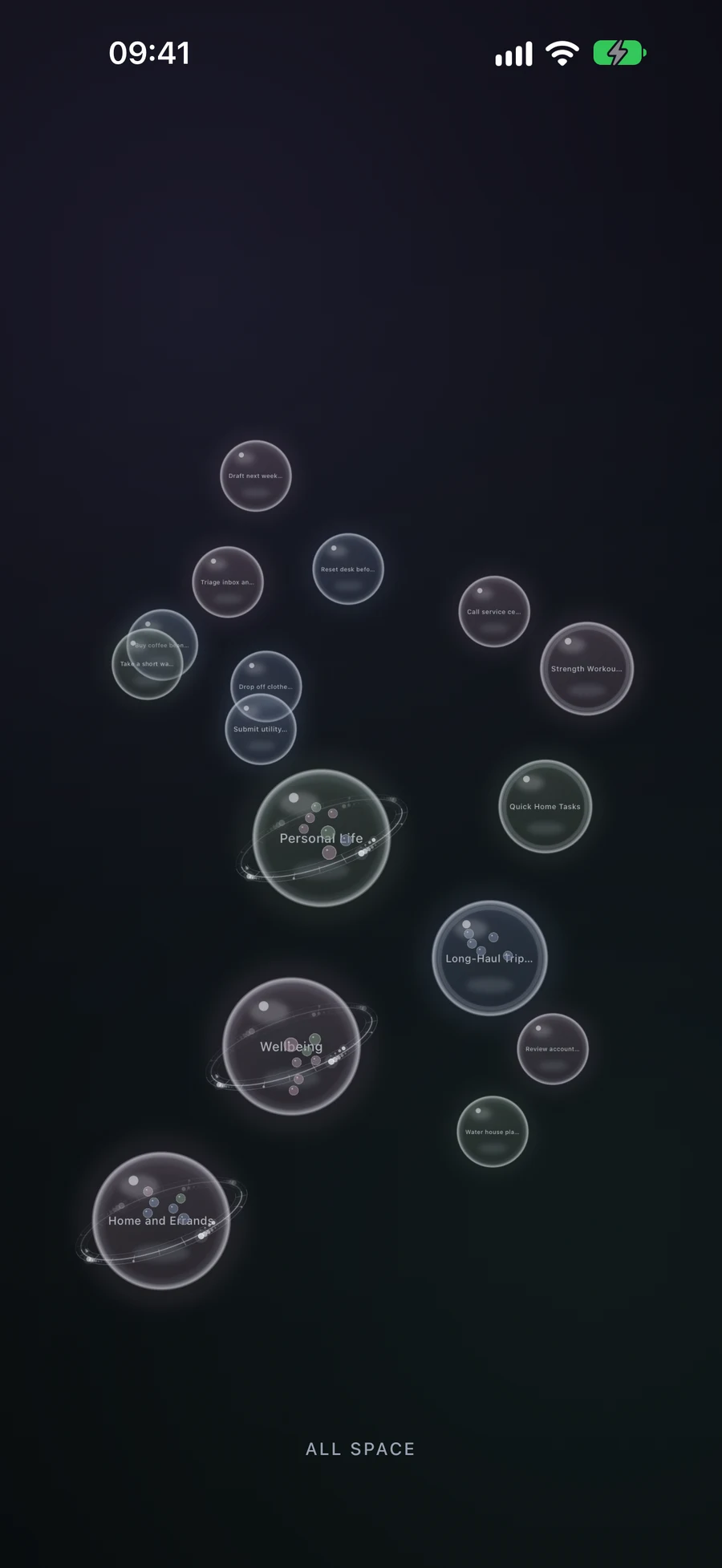
Areas are the largest spheres, Projects and Lists show Task progress, and Tasks are the smallest records you can open. A container previews some of its children; opening it reveals its contents, including records matched through Smart filters. The bottom label identifies your current level.
Try opening Home, then the reading-corner Project, then “Choose a lamp”. Close the Task details and use pinch-in from the fully zoomed-out view to rise through the levels. Sphere tone follows the record’s icon color family; use its name and contents to understand the work rather than reading the tone as a GTD status.
Big View uses the same records as the ordinary screens. The Active Space can narrow the visible structure, and changing that context returns the view to its root. For a crowded level, zoom closer to read names and pan by dragging empty space.
Create a Task or List on a touch screen
Hold an empty part of the view. A sphere grows under your finger: the first stage creates a Task and a longer hold reaches a List. Release at the kind you want, then fill in the editor and Save. The current container limits what can be created inside it; a List can contain Tasks, for example.
Cancel the new record’s editor to return to the previous structure. Creating a Project or Area through touch reorganization uses combination: two Lists form a Project, and two Projects form an Area. Accessible creation actions provide the kinds supported at the current level as well.
Combine related work or move it inside a container
Suppose “Choose a lamp” and “Order a shelf” are separate Task spheres. Long-press one until it lifts, then drag it onto the other. Combining two Tasks creates a List. Give the new List a useful name in its editor and Save to confirm. Cancelling restores the two original spheres.
Two Lists combine into a Project; two Projects into an Area. Two Areas do not combine. With different types, Mement can offer a new container or moving the smaller kind inside the larger. Moving a Task into an existing Project changes its placement without creating a new container or opening a naming editor.
If the combined result cannot remain inside the current container, Mement asks before raising it one level. For example, two Tasks inside a List would produce another List, which must sit outside that List. Read the proposed location before confirming; cancel when it does not express your structure.
Use the controls for your device
On Apple TV, Big View is the primary interface. Select opens a sphere, Back or Menu returns one level, and a long Select opens actions such as Create, Edit, or Combine. Follow those remote actions instead of applying the phone’s pinch gestures.
VoiceOver and other supported assistive technologies provide opening, creation, combination, and exit actions without spatial dragging. Reduced Motion removes nonessential movement. On the main app platforms, ordinary editors also remain available for choosing parents and arranging your plans.
Explore the same hierarchy at different levels
Open the example containers or use the level selector. The records stay in one hierarchy as you move from the overview to a task.
This is a simplified clickable teaching diagram. Mement’s Big View uses spheres and platform-specific interactions over your actual records.
Your example
All space
All space
At the root, Big View lets you explore the available records in the active Space. Open the Home area to see its children.
- Area: Home
Read every example
All space
At the root, Big View lets you explore the available records in the active Space. Open the Home area to see its children.
- Area: Home
Area: Home
An area can contain projects, lists and tasks. Here, Home contains one project with a clear result.
- Project: Reading corner
Project: Reading corner
A project can contain lists and tasks. Open Measurements to explore the actions grouped in that list.
- List: Measurements
List: Measurements
A list contains tasks. Open a task to read its details.
- Task: Measure the window wall
Task: Measure the window wall
A task is an action, so it has no child container level. In Mement, selecting a task opens its details.
- Completion: the dimensions are recorded.
- Parent list: Measurements.
Before you finish
- You recognize the current level and know how to return or exit.
- The Active Space includes the records you intend to organize.
- You read the placement or combination result and saved any newly created container.